
Quick Answer
The fastest way to connect Samsung DeX to a monitor
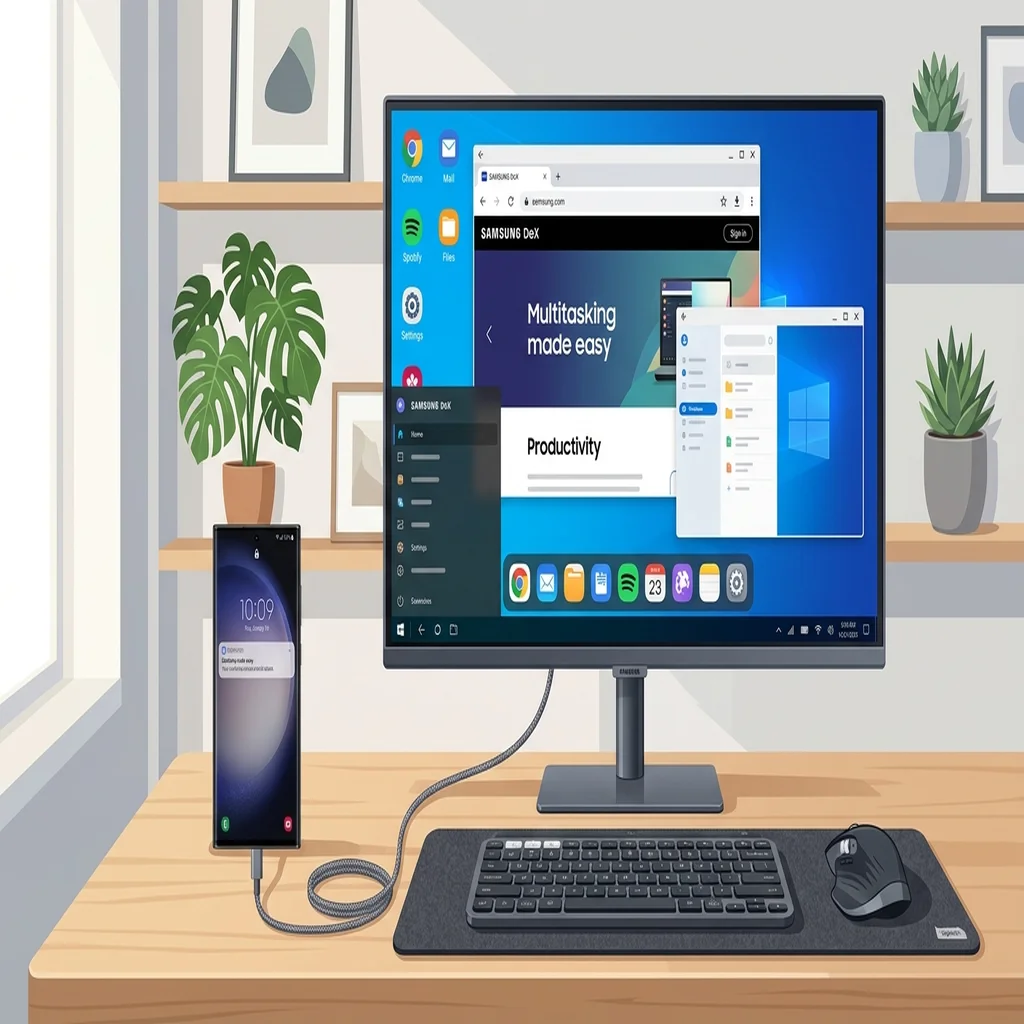
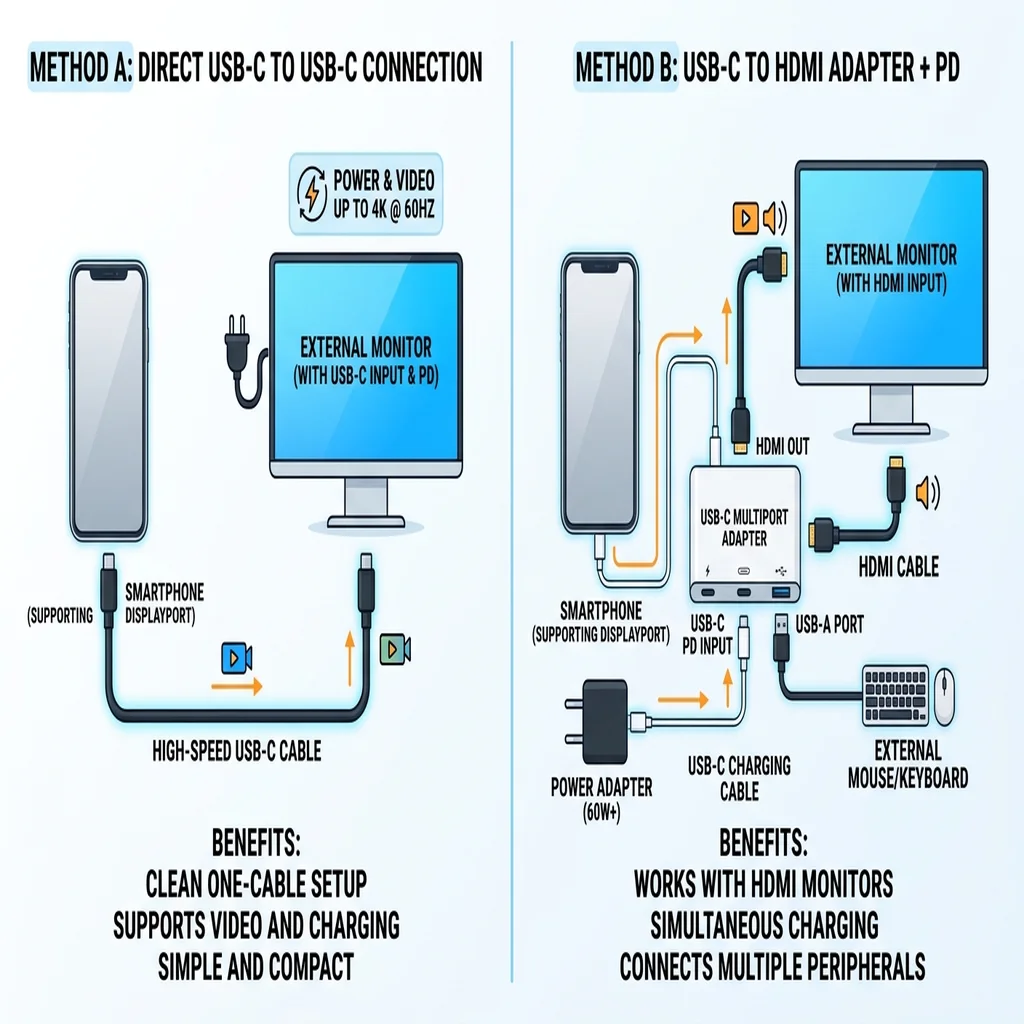
To connect Samsung DeX to a monitor, plug a USB-C to USB-C cable (supporting DisplayPort Alt Mode and power) directly between your compatible Galaxy phone and a USB-C monitor. If your monitor only has HDMI or DisplayPort, use a USB-C to HDMI adapter or a powered multi-port USB-C hub. Samsung DeX will launch automatically in desktop mode within 5 seconds of detecting the video signal.
Samsung DeX Monitor Connection Facts
| Connection Method | Wired USB-C, USB-C to HDMI, or Multi-port Hub |
|---|---|
| Video Protocol | DisplayPort Alternate Mode (DP Alt Mode) over Type-C |
| Host PC Required | No, runs directly on phone hardware (standalone) |
| One UI 7/8 Compatibility | Fully supported (unaffected by PC app discontinuation) |
| Maximum Resolution | Up to 4K UHD (3840x2160) with Good Lock / MultiStar, 1080p/1440p standard |
| Power Requirement | External PD power strongly recommended to prevent battery drain |
| Supported Devices | Galaxy S-series (S8-S25), Note-series, Z Fold, Tab S-series |
How Samsung DeX Direct Monitor Mode Works
Samsung DeX direct monitor mode is an independent hardware feature built into flagship Samsung Galaxy devices. When connected to an external display, the phone's Android operating system switches from the standard mobile touch interface to an optimized multi-window desktop shell featuring a taskbar, system tray, app drawer, and resizable application windows.
Unlike Samsung DeX for PC—which relied on a client program installed on Windows and streamed video over standard USB—direct monitor output operates over DisplayPort Alternate Mode (DP Alt Mode). This hardware protocol transmits uncompressed digital video directly from the Galaxy device's USB-C 3.2 port with zero compression latency and crystal-clear image fidelity.
Because monitor mode does not depend on the discontinued Windows DeX application, it remains completely supported and actively maintained on One UI 7, One UI 8, and upcoming Android platform updates. Whether you connect to a 4K office monitor, an ultrawide gaming display, or a portable travel screen, direct connection is the most stable and responsive way to use DeX.
Three Ways to Connect: USB-C, HDMI, and Powered Hubs
Choosing the correct hardware setup depends on the available video input ports on your display and whether you need to connect external USB peripherals such as a wired keyboard, mouse, or flash drive.
Review the three standard connection paths below to determine the best cable or docking accessory for your desktop setup:
- 1
Direct USB-C to USB-C Connection (Cleanest Desk Setup)
- 2
USB-C to HDMI Adapter or Cable (Most Common Monitor Setup)
- 3
Multi-port USB-C Hub or Docking Station (Full Workstation Productivity)
Using Samsung DeX with Portable Monitors
Portable monitors have become one of the most popular form factors for Samsung DeX users. Brands such as Asus ZenScreen, ViewSonic, Innocn, and Uperfect offer slim 15.6-inch to 17.3-inch 1080p and 4K panels that can be powered and driven directly over a single USB-C cable.
When using a single-cable connection between your Galaxy phone and a portable monitor, the phone's battery powers both the computing hardware and the display backlight. This drains the phone battery rapidly and may limit the display brightness to 30% or 50% to prevent excessive power draw.
For reliable long-term mobile productivity, always plug an external USB-C power bank or wall adapter into the portable monitor's secondary power input. The monitor will pass power through to charge your Galaxy phone while keeping display brightness and speaker volume at maximum levels.
Step-by-Step Guide: How to Start DeX on Your Monitor
Setting up Samsung DeX with an external monitor takes under a minute once you have the appropriate cables. Follow these simple steps:
- 1
1. Power the Monitor and Hub First
- 2
2. Connect Cable to Your Galaxy Device
- 3
3. Automatic DeX Detection and Mode Selection
- 4
4. Connect Keyboard, Mouse, or Use Phone as Touchpad
- 5
5. Adjust Display Audio and Resolution
Power Requirements, Cables, and Audio Output
A frequent question among DeX users is whether external power is strictly mandatory. Samsung DeX can initiate and run on battery power alone when connected via a direct USB-C or passive HDMI cable. However, running a desktop environment with multiple open apps, video decoding, and video output generates significant heat and battery consumption.
Samsung recommends connecting an official Power Delivery (PD) charger providing at least 15W to 25W (9V/2.77A) to maintain battery percentage under heavy workloads. If your multi-port hub supplies power to multiple connected USB devices (such as mechanical keyboards, webcams, or external hard drives), a 45W or 65W PD charger is ideal.
For audio output, HDMI and DisplayPort carry multi-channel digital audio by default. If your monitor lacks integrated speakers or a 3.5mm headphone jack, you can easily toggle audio output back to your phone's stereo speakers or connected Galaxy Buds through the DeX volume menu.
Troubleshooting Common Samsung DeX Monitor Issues
If your monitor does not display the Samsung DeX desktop or shows an error message, work through these proven diagnostic steps:
Screen Mirroring Instead of DeX: If your monitor simply mirrors your phone's vertical screen, navigate to Phone Settings, tap Connected devices, select Samsung DeX, and toggle 'Auto start when HDMI is connected' to ON.
Black Screen or 'No Signal': Unplug the USB-C cable from the phone, wait 5 seconds, and reconnect. Ensure the monitor is manually set to the active input port. Many inexpensive USB-C cables only support USB 2.0 charging and lack video wiring entirely—verify that your cable is explicitly rated for video (DP Alt Mode / 4K60Hz).
Blurry Text or Incorrect Resolution: By default, Samsung DeX limits output to 1080p (FHD) or 1440p (QHD) depending on the accessory. To unlock full 4K UHD (3840x2160) or ultrawide 21:9 / 3440x1440 resolutions on supported devices, install Samsung's official Good Lock app from the Galaxy Store, open the MultiStar module, and enable 'I Love Samsung DeX > High resolutions for external display'.
Phone Overheating or Lag: Connecting to high-resolution displays requires GPU rendering. Keep your device in a well-ventilated area, remove thick protective cases during long sessions, and ensure a fast charger is attached to prevent performance throttling.
Samsung DeX Monitor Connection Methods Comparison
Compare the three primary wired monitor setups to find the best balance between desk simplicity, peripheral connectivity, and charging speed.
| Setup Type | Required Hardware | Power Delivery | Peripherals Support | Best Used For |
|---|---|---|---|---|
| Direct USB-C Monitor | USB-C to USB-C cable (DP Alt Mode) | Yes (from monitor to phone) | Built-in monitor USB hub | Modern office desks, clean minimal setups |
| USB-C to HDMI Cable | USB-C to HDMI 2.0 adapter or cord | Optional (if adapter has PD port) | Bluetooth keyboard & mouse only | Connecting to TVs, projectors, budget monitors |
| Multi-Port USB-C Hub | Powered hub with HDMI + USB ports | Yes (via external USB-C PD charger) | Wired USB-A, mouse, keyboard, Ethernet | Full desktop replacement, heavy productivity |
| Portable Monitor | USB-C cable + optional power bank | Recommended external power supply | OTG micro-USB/USB-C on display | Travel, coffee shops, digital nomad setups |
Frequently Asked Questions: Samsung DeX on Monitors
Does Samsung DeX work on any computer monitor?
Yes. Any monitor with a modern video input—such as USB-C, HDMI, or DisplayPort—is compatible with Samsung DeX. You only need the appropriate cable or adapter to connect your Galaxy device's USB-C port to the display.
Can I use Samsung DeX on a monitor without a PC or laptop?
Yes, absolutely. Direct monitor mode runs entirely off your phone's processor, RAM, and storage. You do not need a computer, operating system, or laptop. Your Galaxy phone is the computer.
Why is my monitor mirroring my phone screen instead of opening DeX?
When connecting for the first time, your phone may default to screen mirroring. Swipe down from the top of your phone screen to open Quick Settings, tap the Samsung DeX icon to turn it on, or open Settings, go to Connected devices, select Samsung DeX, and enable 'Auto start when HDMI is connected'.
Does connecting DeX to a monitor still work in One UI 7 and One UI 8?
Yes. Samsung only discontinued the legacy 'DeX for PC' Windows companion app. Direct wired DeX to monitors, TVs, and wireless DeX to displays remain core, fully supported features in One UI 7 and later.
How do I get 4K resolution on Samsung DeX with an external monitor?
To enable 4K UHD output, connect your phone using a verified HDMI 2.0 or USB-C DisplayPort cable. Then, install Samsung Good Lock from the Galaxy Store, open the MultiStar module, select 'I Love Samsung DeX', and toggle on 'High resolutions for external display'.
Can I use my phone while Samsung DeX is running on the monitor?
Yes. DeX supports dual-screen multitasking. You can take phone calls, send text messages, or run a separate mobile app on your phone screen while continuing your desktop workflow on the monitor.
Do I need an official Samsung DeX Station or DeX Pad?
No. While Samsung previously sold official DeX Station and DeX Pad docks, modern Galaxy devices support standard third-party USB-C cables, HDMI adapters, and USB hubs without requiring proprietary hardware.
Official Sources & References
Technical specifications and display support boundaries verified against official Samsung documentation and hardware standards: