Short answer
DeX is a Galaxy desktop mode, not a separate operating system
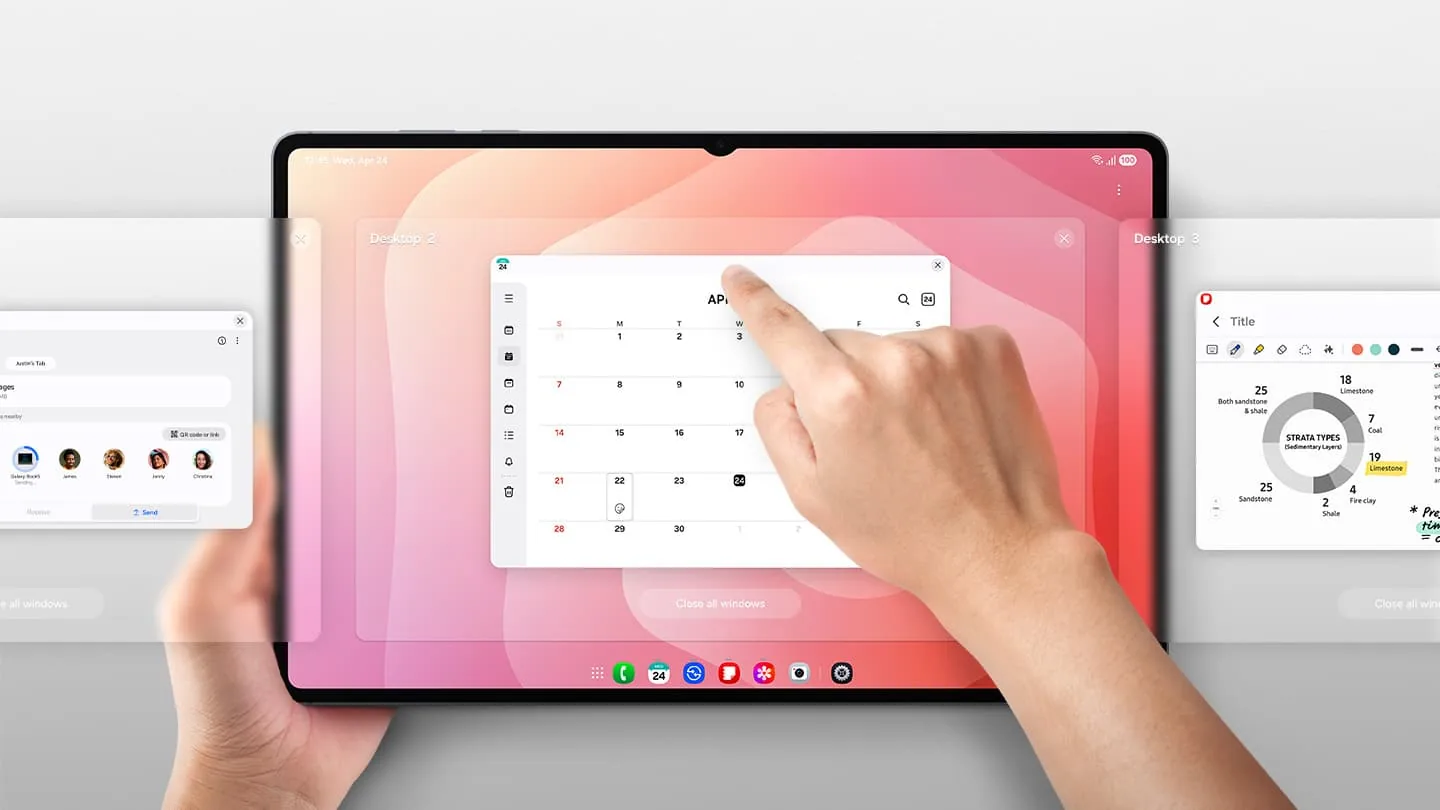
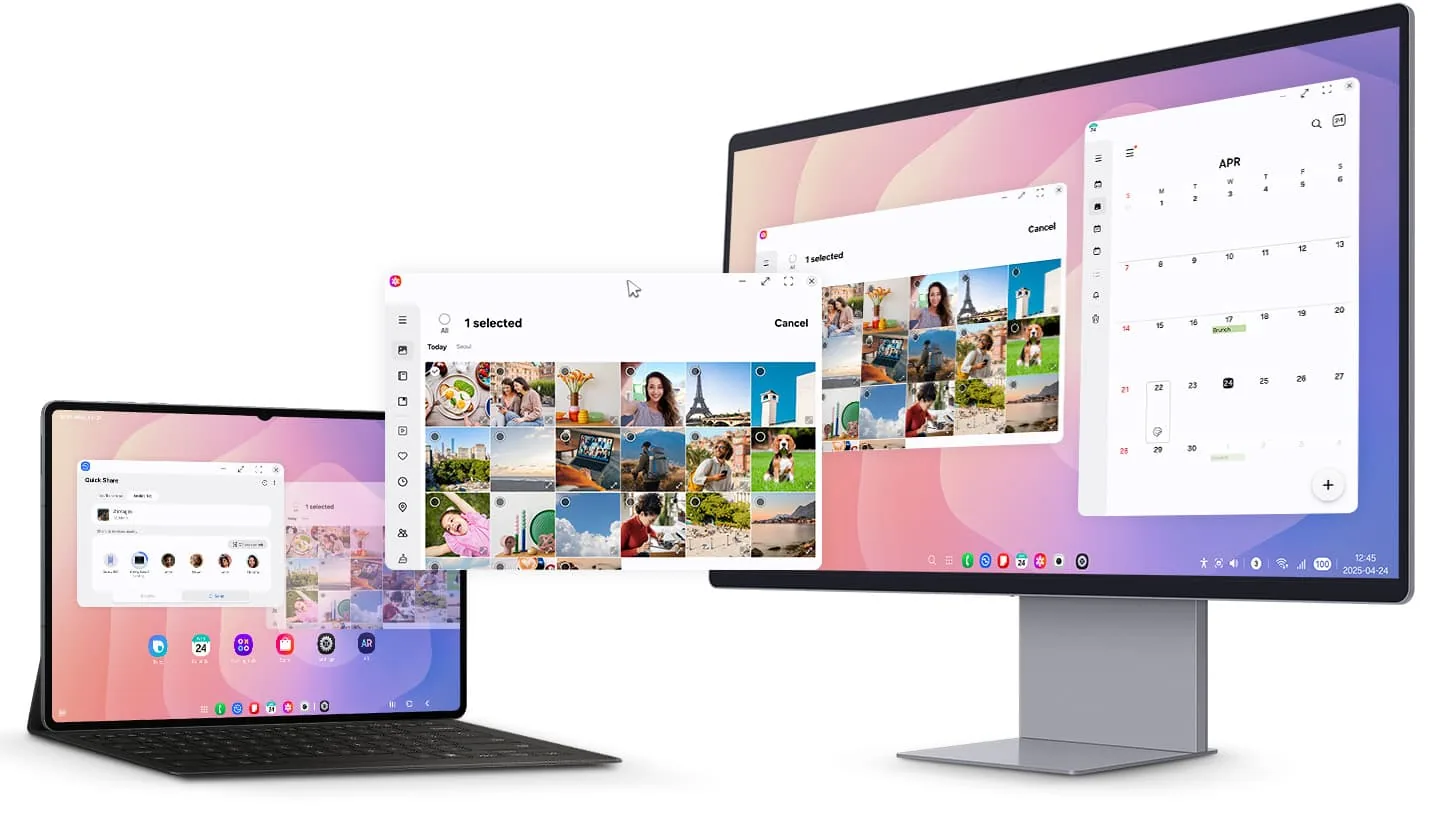
When DeX is available, Android still runs underneath, but supported apps appear in resizable windows with a desktop-like taskbar, pointer controls, keyboard shortcuts, and easier drag-and-drop. You can use DeX on some tablets' own screens, on a monitor through USB-C or HDMI, or wirelessly on a compatible display. DeX for PC was a separate legacy Windows app and is no longer supported on devices running One UI 7 or later.
Samsung DeX at a glance
| What it is | A desktop-style Android workspace on supported Galaxy devices |
|---|---|
| Where it runs | On the Galaxy device; a monitor, TV, or tablet screen displays the workspace |
| Typical controls | Touch, phone touchpad, keyboard, mouse, and S Pen on supported models |
| Separate download required | Usually no for phone, tablet, monitor, or Wireless DeX modes |
| Windows PC app | Legacy mode; not supported for One UI 7 or later |
What Samsung DeX actually does
DeX reorganizes the Galaxy interface for larger screens and desktop input. Instead of showing one phone-shaped app at a time, it provides a taskbar, app launcher, notification area, pointer, keyboard focus, and multiple movable windows. The apps are still Android apps, so their behavior depends on whether each developer supports resizing, keyboard input, drag-and-drop, and landscape layouts.
The main benefit is continuity: the same files, accounts, mobile apps, messages, browser sessions, and device storage remain available. A user can connect a display for focused work, disconnect it, and continue on the phone or tablet. DeX is therefore closer to a flexible presentation layer for Android than a replacement for Windows, macOS, or a full desktop Linux distribution.
DeX changes
Window layout, taskbar, pointer behavior, keyboard workflow, multitasking, and external-display use.
DeX does not change
The underlying Android system, app availability, device hardware limits, or a service's mobile-app restrictions.
DeX does not guarantee
That every app behaves like desktop software, every Galaxy model supports video output, or every display offers the same resolution.
How DeX mode looks and feels
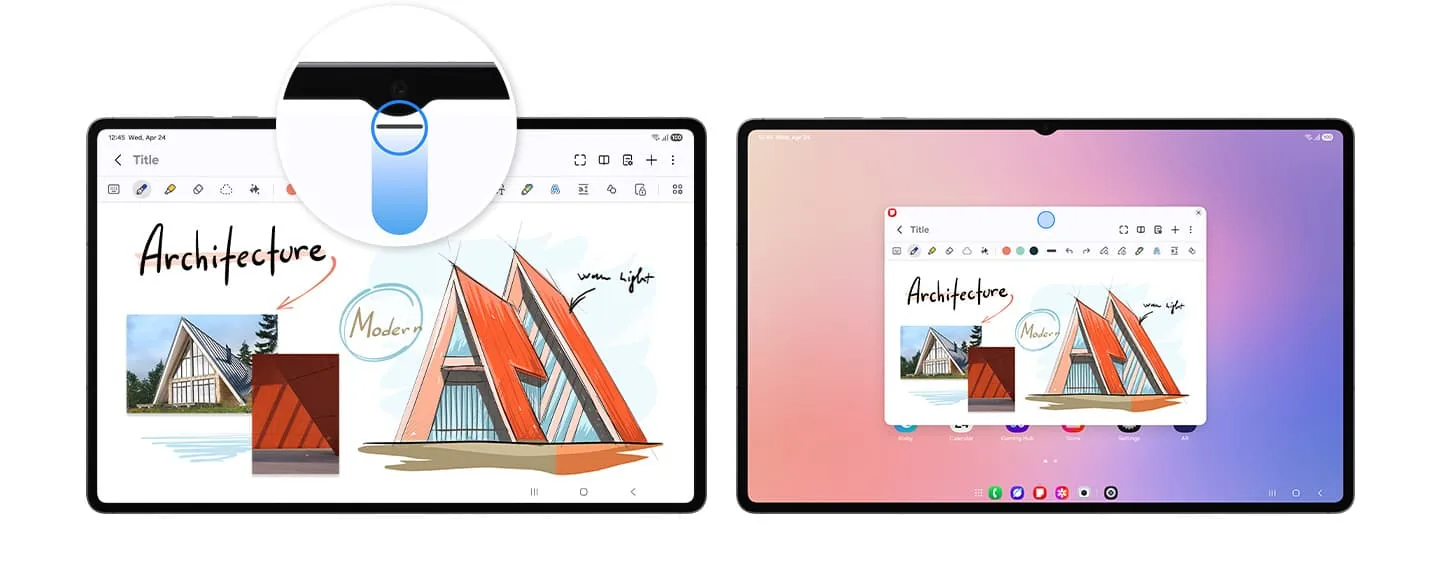
A DeX session normally opens with a desktop, taskbar, app icons, status controls, and a windowed app area. You can place compatible apps side by side, resize them, switch with the taskbar, copy text between windows, and use right-click or keyboard shortcuts where the app supports them. On a tablet, newer DeX versions may also preserve more of the familiar tablet interface while adding desktop window controls.
The experience is most convincing with a keyboard and mouse, but neither is mandatory for a quick session. A phone can act as a touchpad, and a touchscreen display or Galaxy tablet can accept direct touch. The exact menu names and layout can change by Galaxy model and One UI version, so an older tutorial may not match a newer device pixel for pixel.
Four ways people use Samsung DeX
The name Samsung DeX covers several connection patterns, and confusing them causes many unnecessary downloads. A direct monitor session runs from the phone or tablet itself. Wireless DeX sends the workspace to a compatible display. Some Galaxy tablets can run DeX on their own screen. DeX for PC, by contrast, was a Windows application that displayed the phone workspace inside a PC window.
Choose the screen first, then check the device and software requirements for that mode. A phone that supports Wireless DeX may still lack wired video output, while a tablet may offer an on-device DeX interface that a phone does not. One UI 7 also created an important boundary: Samsung says DeX for PC is no longer supported, although monitor-based or tablet DeX can still be available on compatible hardware.
- 1
On a Galaxy tablet
Open DeX from Settings or Quick settings when the model and One UI version provide an on-device DeX mode.
- 2
On a wired monitor
Connect a supported USB-C video device through a compatible cable, hub, dock, or USB-C monitor; no Windows installer is involved.
- 3
On a wireless display
Start Wireless DeX and select a compatible Miracast TV or display. This is convenient but usually adds more latency than a cable.
- 4
Inside a Windows PC window
This legacy DeX for PC route requires the Windows app and an older compatible Galaxy software combination; One UI 7 or later is not supported.
What you need before starting DeX
The first requirement is a supported Galaxy model. The second is support for the exact mode you want, because tablet DeX, wired video output, Wireless DeX, and the retired PC app do not share identical device lists. Then check the display path: USB-C video support, an HDMI adapter or dock, a Miracast receiver, sufficient power delivery, and data-capable cables can all affect the result.
For productive use, add a keyboard and mouse and keep the phone powered. High-resolution displays, multiple peripherals, and long sessions put more demand on the hub, charger, and device cooling. If DeX does not appear, verify the model and One UI version before replacing cables or installing software. An unsupported phone cannot gain DeX simply by sideloading an APK.
- A Galaxy phone or tablet that supports the intended DeX mode
- A compatible monitor, TV, or tablet screen
- The correct USB-C video cable, hub, dock, or Miracast connection
- A reliable power source for longer sessions
- Optional keyboard and mouse for a more desktop-like workflow
Do not download a random Samsung DeX APK or mirrored PC installer to add compatibility. DeX capability depends on Samsung's device hardware and system software.
What Samsung DeX is good for—and where it falls short
DeX works well for web browsing, email, messaging, presentations, remote desktop, cloud documents, media playback, file management, and light office tasks. It can be especially useful for travelers, shared desks, classrooms, field work, or anyone who already keeps important work inside Android and browser services. A direct monitor connection can also create a private desktop while the phone remains available for calls and authentication.
It is less suitable when the job depends on desktop-only software, unsupported browser extensions, complex local development tools, specialist drivers, high-end PC gaming, or exact multi-monitor behavior. Some Android apps remain phone-shaped or restrict multiple windows. Before replacing a laptop, test the actual apps, display resolution, keyboard layout, audio route, VPN, external storage, and meeting tools you need.
Samsung DeX versus DeX for PC
Samsung DeX is the broad desktop experience that runs from a compatible Galaxy device. DeX for PC was only one delivery method: a Windows program that received the phone's DeX workspace in a desktop window. That distinction matters because articles saying DeX is discontinued usually refer to the PC application, not every form of DeX.
Samsung's current support guidance says DeX for PC is not supported on devices running One UI 7 or later and points Windows users toward Link to Windows. Link to Windows is useful for notifications, messages, calls, files, and supported mobile apps, but it is not the same full-screen, phone-powered desktop workspace as direct monitor DeX.
Samsung DeX modes compared
Use the mode that matches the screen and task instead of assuming every DeX search requires a download.
| Mode | Where it appears | Download needed | Best for |
|---|---|---|---|
| Tablet DeX | Supported Galaxy tablet screen | No separate DeX app | Portable multitasking |
| Wired DeX | USB-C or HDMI monitor/TV | No Windows app | Low-latency desk setup |
| Wireless DeX | Compatible wireless display | No Windows app | Presentations and casual use |
| DeX for PC | Window inside Windows 10/11 | Legacy Windows installer | Older compatible devices only |
| Link to Windows | Windows integration panels/apps | Windows/Android system components | Messages, calls, files, and notifications |
Samsung DeX questions
Is Samsung DeX an app or an operating system?
It is a desktop-style mode built into supported Galaxy system software. Android remains the operating system, and the apps are Android apps. The legacy DeX for PC component was a separate Windows application.
Do I need to download Samsung DeX on my phone or tablet?
Usually no. If the Galaxy model supports DeX, the feature is part of the device software. Look in Settings or Quick settings. A separate APK does not add DeX hardware support to an unsupported model.
What is DeX mode on a Samsung tablet?
It is a desktop-oriented tablet workspace with window controls, a taskbar, keyboard and mouse support, and improved multitasking. Availability and the exact layout depend on the Galaxy Tab model and One UI version.
Can Samsung DeX replace a laptop?
It can replace a laptop for browser-based work, communication, presentations, remote access, media, and many Android workflows. It is not a complete replacement when you require desktop-only applications, specialist hardware drivers, advanced development tools, or PC games.
Does Samsung DeX still work with One UI 7 or One UI 8?
Samsung says DeX for PC is not supported on One UI 7 or later. Other DeX modes may still work on compatible phones and tablets, so check the device and connection mode rather than treating the PC app change as the end of all DeX support.
What is the difference between Samsung DeX and screen mirroring?
Screen mirroring copies the normal phone or tablet display. DeX creates a desktop-style workspace with separate window management, taskbar controls, pointer input, and layouts intended for a larger screen.
Can I connect Samsung DeX to a laptop?
The legacy DeX for PC app could display DeX inside a compatible Windows PC, but One UI 7 or later is not supported. A laptop HDMI port is usually output-only, so direct cable DeX normally targets a monitor or TV, not the laptop panel.
Official Samsung DeX sources
Feature descriptions and media were checked against current Samsung pages on July 30, 2026.