
Quick answer
DeX mode on a tablet is built into supported Galaxy Tab software
On a compatible Samsung tablet, open Quick settings and tap DeX, or open Settings and search for Samsung DeX. The exact menu name and whether you see New DeX mode, Classic DeX mode, or both depends on the tablet model and One UI version. A separate APK normally cannot add DeX to a tablet that does not support it.
Samsung tablet DeX basics
| Core feature | Built into selected Galaxy Tab models and system software |
|---|---|
| Main screen | A desktop-style workspace can run directly on the tablet display |
| Input | Touch, S Pen, Book Cover Keyboard, Bluetooth keyboard, or mouse depending on setup |
| External display | Model, USB-C video support, adapter, cable, and receiver dependent |
| Download status | No separate DeX APK is normally required for a supported Galaxy Tab |
| Software caveat | Menu names, modes, and multitasking behavior vary by One UI release |
What is DeX mode on a Samsung tablet?
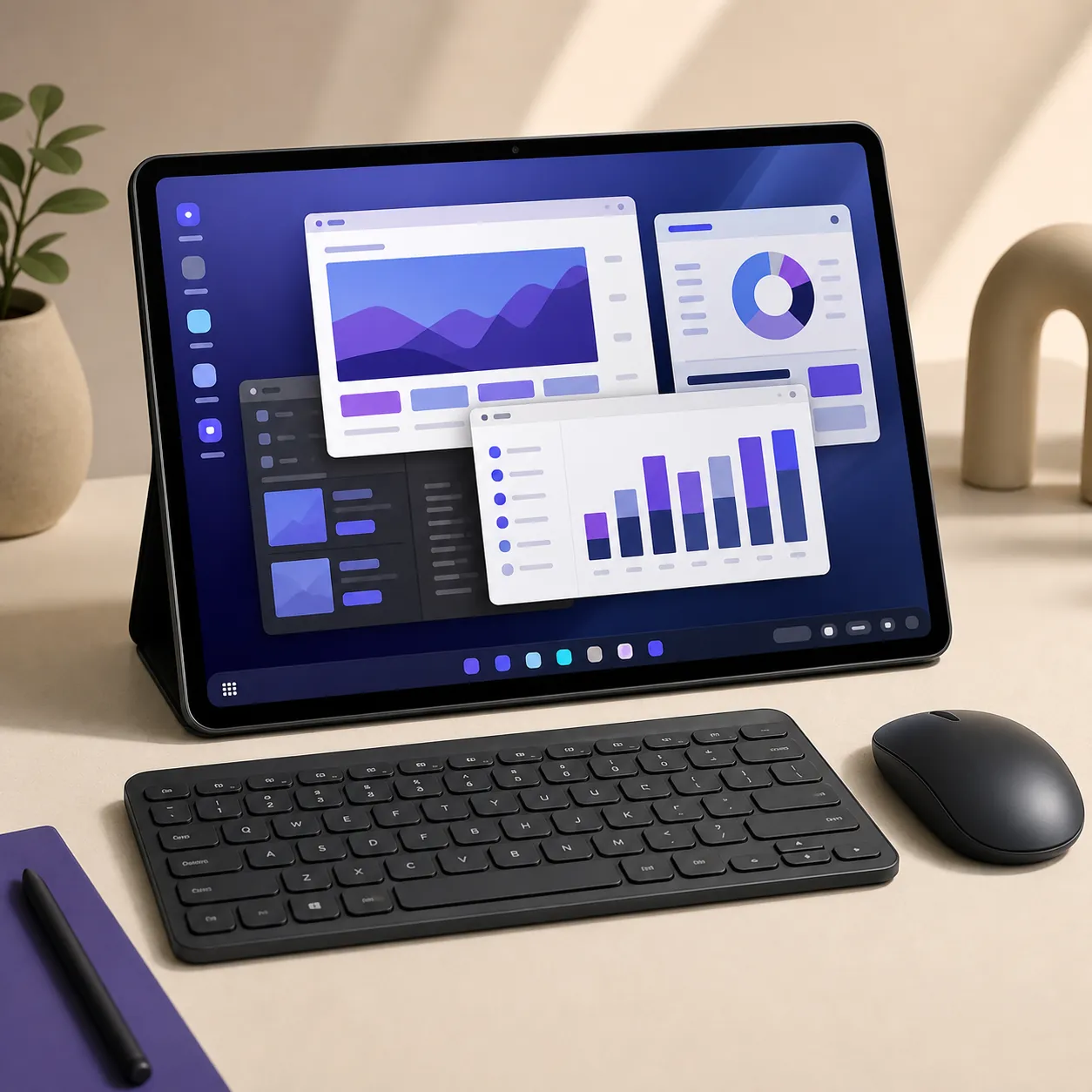
Samsung DeX on a tablet is a desktop-style interface layered onto supported Galaxy Tab software. Instead of opening every app in a full-screen phone layout, DeX can present resizable windows, a taskbar, desktop controls, and keyboard-and-mouse-friendly interactions on the tablet's own display. The tablet remains the computer: its apps, storage, accounts, notifications, battery, and One UI version still control the session.
The tablet experience is different from DeX for PC. DeX for PC was a legacy Windows or macOS companion application that displayed the phone desktop inside a computer window. Tablet DeX runs on the Galaxy Tab itself, so installing the Windows installer or searching for an Android APK is usually the wrong answer when the question is how to open DeX on a tablet.
DeX also does not turn every Android app into a full desktop application. Many apps resize well, while others stay portrait-oriented, show a phone layout, or provide limited keyboard shortcuts. Use DeX when the larger workspace, multitasking, and external input are useful—not because it guarantees Windows software compatibility.
Tablet screen
Run the desktop-style workspace directly on a compatible Galaxy Tab for portable multitasking.
External display
Use a monitor or TV only when the exact tablet and display path support wired or wireless output.
Not a download
A random APK cannot safely add Samsung's integrated DeX feature to an unsupported tablet.
How to open Samsung DeX on a tablet
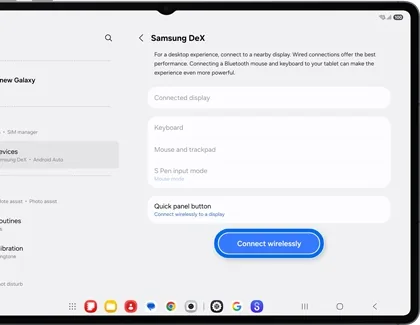
Start with the tablet's own software rather than a download site. Unlock the Galaxy Tab, open the full Quick settings panel, and look for DeX. If the tile is not visible, edit the Quick settings layout or open Settings and search for Samsung DeX. On some models the control appears under Connected devices or a similar device-connection menu.
If DeX is available, tapping the control may switch the tablet into the selected desktop mode immediately or open a choice between New DeX mode and Classic DeX mode. Read the short prompt before applying it. A first launch can rearrange windows and the taskbar, but it does not erase your Android apps or personal files.
- 1
Check the exact tablet model
Open Settings > About tablet and record the model number before assuming that every Galaxy Tab has the same DeX options.
- 2
Open Quick settings
Swipe down twice and look for DeX. Use the edit control if the tile is hidden from the first panel.
- 3
Search Settings when needed
Search for Samsung DeX or review Connected devices when the Quick settings tile is unavailable.
- 4
Choose the available mode
Start New DeX mode or Classic DeX mode if the tablet presents both, then give the interface a moment to reload.
- 5
Add input devices
Pair a keyboard and mouse, use touch or S Pen, and adjust screen zoom and taskbar behavior for the tablet display.
New DeX mode or Classic DeX mode?
Some newer Galaxy Tab and One UI combinations expose more than one DeX presentation. New DeX mode is designed to keep the tablet's current interface and desktop features closer together, while Classic DeX mode emphasizes the traditional desktop layout. Samsung may change the names, placement, or availability by model and software release.
Choose the mode that matches the task. New DeX can be more convenient when you move between tablet and desktop interactions during the day. Classic DeX may feel more familiar if you want a taskbar, resizable windows, and a workspace that stays separate from the standard tablet layout. Neither choice makes unsupported apps behave like native Windows applications.
If a software update changes the menu or removes a mode, verify the current model documentation before treating it as a fault. A missing toggle can reflect a supported product decision, a regional rollout, or a different One UI design—not necessarily a damaged installation.
- Use the mode shown by the tablet's current Settings menu; do not follow an older screenshot blindly.
- Test window resizing, keyboard input, notifications, audio, and app behavior before relying on the mode for work.
- Keep the tablet updated through normal Samsung software settings, but do not install modified DeX packages.
- If the mode is absent, check compatibility first and then review the Samsung support page for the exact model.
Use a keyboard, mouse, touchpad, or S Pen in tablet DeX
A keyboard makes tablet DeX feel closer to a compact laptop, especially when you switch between windows, type in browser fields, and use file or document apps. A Samsung Book Cover Keyboard can provide a model-specific fit, while Bluetooth and USB keyboards may work when the tablet supports the required pairing or hub connection.
A mouse gives you a pointer for small controls and window edges. Without one, touch, S Pen input, or the tablet's touchpad accessory can still handle many tasks. Use the input method that matches the screen size: touch is quick for launching apps, while a mouse and keyboard are usually better for long documents and precise window management.
Searches for Samsung DeX keyboard shortcuts often mix tablet DeX, DeX for PC, and Windows keyboard questions. Treat shortcut behavior as model- and app-dependent. Start with common Android and window controls, then test the keys on the current tablet instead of assuming a Windows shortcut or a dedicated DeX key exists.
- Pair Bluetooth input in Settings > Connections or the tablet's current device-connection menu.
- Use a powered USB-C hub when a wired keyboard, mouse, storage device, and charging need to work together.
- Adjust pointer speed, keyboard language, screen zoom, and taskbar behavior before changing display hardware.
- If an app ignores the keyboard, check the app's own settings; DeX cannot add shortcuts that the app does not implement.
- Keep the screen touchable for authentication prompts, app permissions, and tasks that do not expose desktop controls.
Can a Samsung tablet use DeX on a monitor or TV?
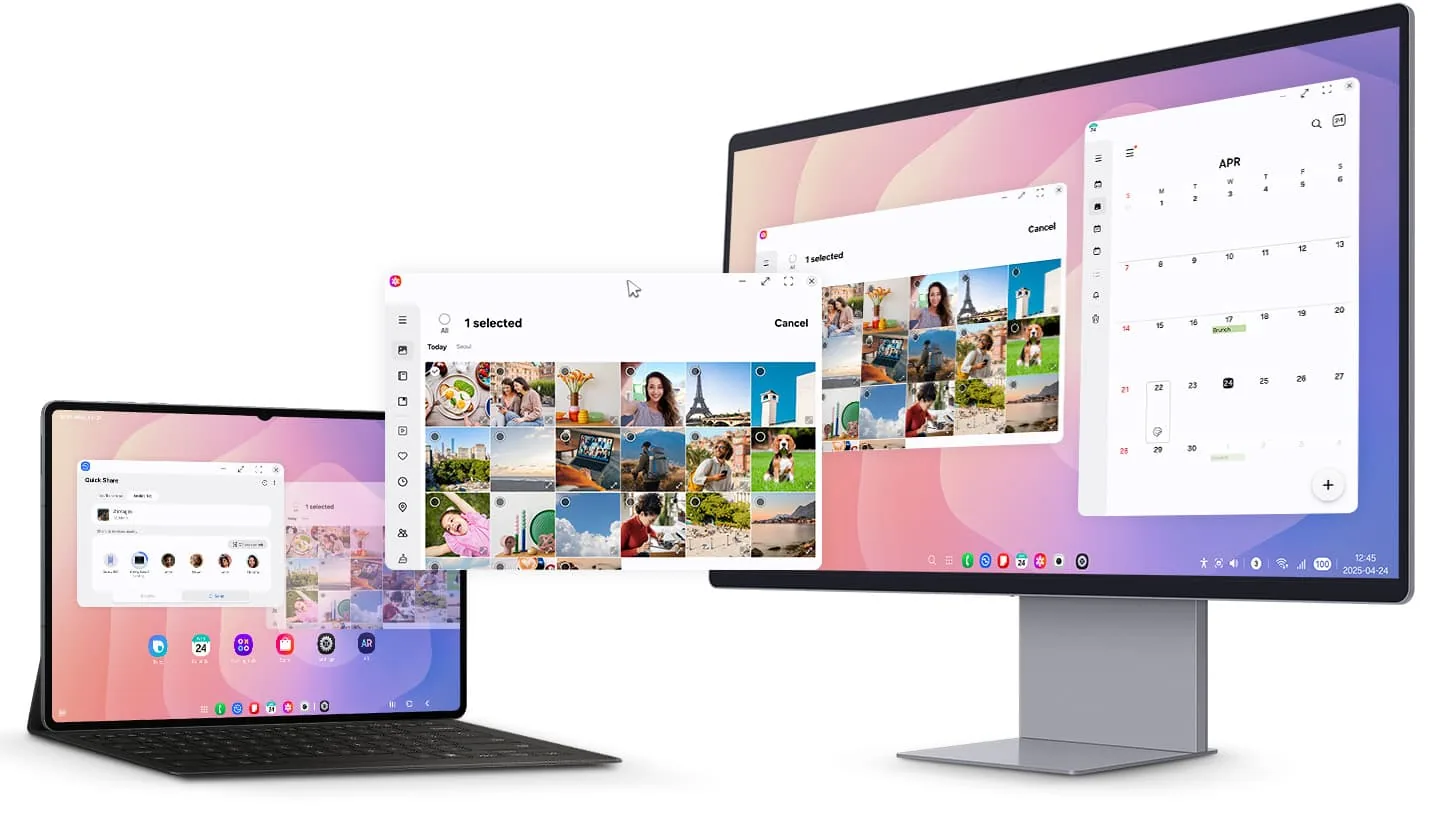
Some Galaxy Tab models can send a DeX workspace to an external monitor or TV, but the connector alone is not proof of support. Verify the exact tablet's wired video output, the USB-C adapter or dock, the cable, the display input, and the available power. A USB-C port that handles charging or data may not provide the video signal required for DeX.
For a wired setup, use a video-capable USB-C cable, adapter, or powered hub and select the matching input on the display. For a wireless setup, use the tablet's Connect wirelessly option with a compatible Miracast receiver. The available layout and whether the tablet screen stays active can vary by model and One UI release.
Do not assume a dock with two video ports creates a universal extended dual-monitor DeX desktop. Samsung DeX is commonly built around one external desktop display, and the tablet, dock, and One UI version determine what actually appears. Use the resolution and troubleshooting guides when the monitor shows no signal, blurry text, or an unexpected mirrored view.
- 1
Confirm tablet video support
Check the exact Galaxy Tab model and current Samsung documentation before buying a USB-C video accessory.
- 2
Choose wired or wireless
Use a video-capable USB-C path for predictable latency, or Connect wirelessly for a compatible Miracast display.
- 3
Select the display input
Choose the HDMI or USB-C input that receives the tablet signal and connect power when the hub requires it.
- 4
Check the actual DeX layout
Confirm whether the display shows a desktop workspace, a mirrored tablet screen, or no signal before changing more settings.
Why Samsung DeX is missing or will not open on a tablet
The most common cause is a model or software mismatch. Galaxy Tab branding covers many generations and configurations, so a feature present on one tablet is not automatically present on another. Check the model number, installed One UI version, region-specific documentation, and whether you want tablet-screen DeX or external-display DeX.
If the feature should be available, restart the tablet, install normal system updates, edit Quick settings, and search Settings for Samsung DeX. Disconnect unusual hubs or receivers while testing the tablet's own screen. If the option disappears after an update, compare the current Samsung support instructions for the exact model rather than reinstalling an APK.
A tablet that opens DeX but feels slow or unstable may be limited by app behavior, storage pressure, battery temperature, display bandwidth, or accessory power. Test without extra peripherals, close heavy apps, and add one component at a time. For a black screen or missing external monitor, continue with the supported-device, resolution, and troubleshooting guides.
- No DeX tile: edit Quick settings and search Settings before assuming the tablet is unsupported.
- No DeX setting: verify the exact model and One UI version against Samsung's current documentation.
- External display blank: test the tablet on its own screen, then isolate the adapter, cable, power, and monitor input.
- Keyboard not responding: re-pair it, check the input language, and test a different app before changing DeX modes.
- Slow or hot session: close heavy apps, remove unnecessary accessories, and let the tablet cool before retesting.
Samsung DeX is integrated with supported Galaxy hardware and One UI. A website offering a DeX APK, compatibility unlock, or modified tablet package cannot safely add the missing feature.
Samsung tablet DeX modes compared
Use the mode description as a starting point, then confirm the exact options shown by your Galaxy Tab.
| Mode | Where it runs | Best for | Main limitation |
|---|---|---|---|
| New DeX mode | Tablet screen and supported DeX layouts | Switching between tablet and desktop-style work | Availability and controls vary by model and One UI |
| Classic DeX mode | Tablet screen with a traditional desktop layout | Windows, taskbar, keyboard, and mouse workflows | Not offered on every tablet or software version |
| Wired external DeX | Monitor or TV through a video-capable USB-C path | Stable desk work and larger-screen productivity | Requires compatible tablet, accessory, cable, display, and power |
| Wireless DeX | Miracast-capable TV, monitor, or receiver | Presentations and cable-free setup | Receiver support and wireless latency affect the result |
Samsung tablet DeX FAQ
What is DeX mode on a Samsung tablet?
It is a desktop-style Samsung interface available on selected Galaxy Tab models. It can show resizable app windows, a taskbar, and keyboard-and-mouse-friendly controls on the tablet or a supported external display.
How do I open Samsung DeX on a tablet?
Open Quick settings and tap DeX, or search Settings for Samsung DeX. If the tile and setting are both missing, check the exact tablet model and One UI version before looking for software downloads.
Can I use a Samsung tablet like a Windows laptop with DeX?
DeX can make the tablet feel more like a laptop for multitasking, keyboard input, and windowed Android apps, but it does not run Windows programs or change Android apps into native Windows software.
How do I disable Samsung DeX on my tablet?
Leave DeX through the current DeX control or switch back to the tablet interface from Quick settings or Settings. Menu wording differs by model and whether New or Classic DeX is active.
Do all Samsung tablets support DeX?
No. Galaxy Tab support varies by model, generation, region, and One UI release. Verify the exact model in Samsung documentation and the supported-devices guide rather than assuming the whole product family has DeX.
Do I need to download Samsung DeX on Android or install an APK?
Usually no for a supported Galaxy Tab. DeX is normally integrated into Samsung system software. An unofficial APK cannot add the hardware, window manager, or display support required by an unsupported tablet.
Can a Samsung tablet connect to a monitor or TV through DeX?
Some models can use a compatible USB-C video path or Wireless DeX, but support depends on the exact tablet, adapter, cable, display input, receiver, and One UI version. Test the tablet and confirm the accessory specifications.
Does Samsung tablet DeX support keyboard shortcuts?
Many common keyboard and window controls work, but shortcut behavior depends on the tablet, One UI version, keyboard layout, and app. Test the keys you need on the current device instead of copying Windows-only shortcut lists.
Official Samsung references
Samsung changes menus and supported behavior by Galaxy Tab model and One UI release. Use the current regional support page for the exact tablet before relying on a connection or shortcut.