
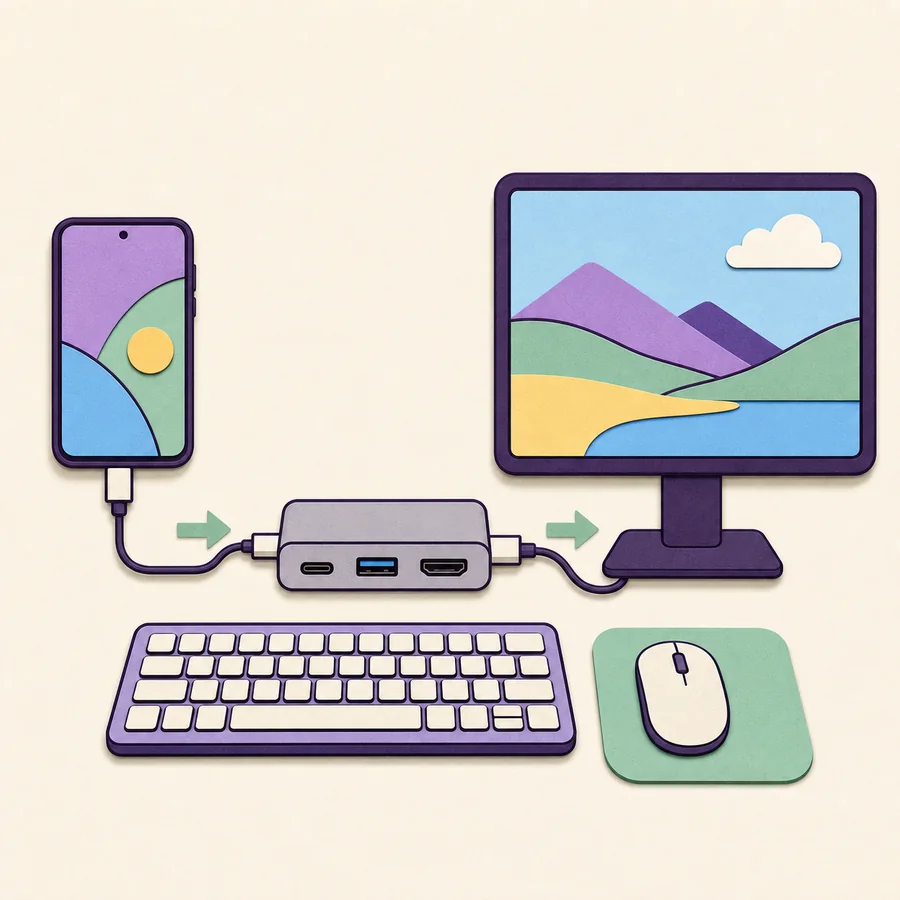
Choose before connecting
Start with the screen, then choose the cable or app
For a monitor, connect a supported Galaxy device through a video-capable USB-C cable, hub, or HDMI adapter. For a compatible TV, open Wireless DeX and select the display. For a Windows PC window, use the legacy installer only when the phone runs compatible pre-One UI 7 software.
What you need for Samsung DeX
| Supported Galaxy device | Required for every DeX mode |
|---|---|
| Wired monitor | Video-capable USB-C path or HDMI hub/adapter |
| Wireless display | Compatible Miracast receiver or TV |
| Windows PC mode | Windows 10/11 plus legacy-compatible phone software |
| Input devices | Phone touchpad, USB or Bluetooth keyboard and mouse |
| Recommended power | USB-C power delivery for hubs and long sessions |
How to Use Samsung DeX: choose the right setup
The fastest way to learn how to use Samsung DeX is to choose the destination first: a monitor needs video output, a TV needs a compatible wireless display receiver, and a Windows laptop usually needs the legacy PC workflow or a separate Windows wireless-display feature. This page keeps those paths separate so one cable or app is not treated as universal.
Use Wireless DeX when convenience matters more than minimum latency. It is useful for presentations, video, and light couch-based control, but typing, cursor movement, and high-resolution content may feel less immediate than a cable connection.
Use DeX for PC only when you specifically need the phone desktop in a Windows window and the phone still supports that legacy mode. Samsung says One UI 7 or later does not support DeX for PC. Link to Windows is the current alternative for many phone-to-PC integration tasks.
- Monitor route: best for stable desktop work and peripherals.
- Wireless route: best for quick TV or presentation use.
- Legacy PC route: best only for compatible older phone software.
- Tablet route: useful when a supported Galaxy Tab can run DeX on its own screen.
- Link to Windows: useful for calls, messages, notifications, photos, files, and supported apps.
How to use Samsung DeX with a monitor
Confirm that the Galaxy model supports wired DeX and video output. Then choose either a USB-C monitor that accepts video from the phone or a hub or adapter that converts USB-C video to HDMI. A connector that fits is not enough; the phone, accessory, cable, and display input must all carry the correct signal.
Connect power to the hub when it supports power delivery, attach the display, and then connect the phone. Select the monitor's input and unlock the phone. Follow any DeX prompt, then connect a keyboard and mouse by USB or Bluetooth. The phone can often act as a touchpad until other input devices are ready.
If the phone mirrors its normal screen rather than opening DeX, open the DeX control in Settings or Quick settings and review the connected-display behavior. Interface choices vary across models and One UI releases.
- 1
Verify wired DeX support
Check the exact model and confirm video output before purchasing an adapter.
- 2
Connect the display
Attach HDMI or USB-C video and select the matching monitor input.
- 3
Add power
Use a suitable USB-C charger with the hub when supported.
- 4
Attach and unlock the phone
Approve the DeX prompt and keep the phone available during setup.
- 5
Connect input devices
Pair a keyboard and mouse or use the phone touchpad to begin.
How to use Samsung DeX wirelessly on a TV
Put the TV, monitor, or receiver into its screen-mirroring or wireless-display mode. On the Galaxy device, open Samsung DeX and choose the wireless option, then select the display name. Confirm the connection on the TV if it asks for approval.
Keep the phone and receiver close while pairing. Remove stale receiver entries, disable a conflicting hotspot or VPN, and reduce busy Wi-Fi traffic if discovery or lag becomes a problem. Although the video connection is wireless, a Bluetooth keyboard and mouse can make navigation more practical.
Wireless DeX is not the same as the old wireless DeX for PC option. A TV or Miracast receiver presents the phone desktop directly, while DeX for PC relied on the desktop companion application and is no longer supported on One UI 7 or later.
For long typing sessions, gaming, high-resolution video, or storage devices, prefer a wired monitor connection to reduce latency and keep the phone powered.
How to use Samsung DeX on a Windows PC
Read the phone's One UI version first. If it is One UI 7 or later, Samsung does not support DeX for PC, so do not spend time reinstalling the Windows application. Use Link to Windows or connect the phone directly to a monitor if the model supports that mode.
For a compatible older phone, download SamsungDeXSetupWin.exe from Samsung's Download Center, install the Windows application, open it, and connect the unlocked phone with a data cable. Approve the connection prompt. If Windows only charges the phone, test another cable and port before changing drivers.
The PC window is a view of the phone-powered DeX workspace. It does not convert Windows applications into Android apps, and closing or disconnecting the session does not move phone apps permanently onto the PC.
Build a practical DeX desktop workflow
Use a keyboard with familiar shortcuts, a mouse with adjustable speed, and a hub that provides enough ports without blocking power delivery. Keep important files in locations that are available from both the phone and any connected storage. Test application behavior before relying on DeX for a presentation or full workday, because not every Android app handles large windows or keyboard input equally.
Lock-screen behavior, audio output, display resolution, taskbar layout, and window controls can differ by One UI version. Change one setting at a time and confirm the result. For sensitive work, remember that the phone remains the computing device: its storage, accounts, notifications, security state, and network access govern the session.
Samsung DeX connection methods compared
Choose the simplest path that satisfies the actual screen and input requirement.
| Method | Best for | Advantages | Limitations |
|---|---|---|---|
| USB-C or HDMI monitor | Desk work and peripherals | Low latency, charging, stable image | Needs compatible hardware and cable |
| Wireless DeX | TV, presentation, quick setup | No video cable | More latency and receiver dependency |
| Legacy DeX for PC | Phone desktop inside Windows | Uses the PC display and input | Not supported on One UI 7+ |
| Galaxy Tab DeX | Portable tablet desktop | Can work without an external display | Availability and interface vary by tablet |
How to use Samsung DeX FAQ
Can I use Samsung DeX on any monitor?
The monitor must accept a compatible input, and the Galaxy device and adapter must support video output. USB-C connectors alone do not guarantee video compatibility.
How do I use Samsung DeX on a laptop?
The legacy DeX for PC application can display DeX in a Windows laptop window for compatible pre-One UI 7 phones. A laptop HDMI port is normally output-only and cannot be used like a monitor input.
Can Samsung DeX work without a cable?
Wireless DeX can connect a supported Galaxy device to a compatible Miracast display. Expect more latency than a direct wired connection.
Do I need a DeX Station or DeX Pad?
Not always. Many supported devices can use a suitable USB-C to HDMI adapter, powered hub, or USB-C monitor. Verify power, video, and port requirements.
Can I use the phone while DeX is running?
Supported behavior varies, but the phone can often remain usable and may act as a touchpad. The phone still powers the session, so battery, heat, and notifications matter.
Why does my display only mirror the phone?
Check whether the exact model supports DeX, open the DeX setting, verify the video accessory, and review connected-display behavior for the current One UI version.
Official setup references
Samsung changes menus and supported behavior by device and One UI release. Use the current regional support documentation for final confirmation.