
Short answer
Start by identifying what the laptop must do
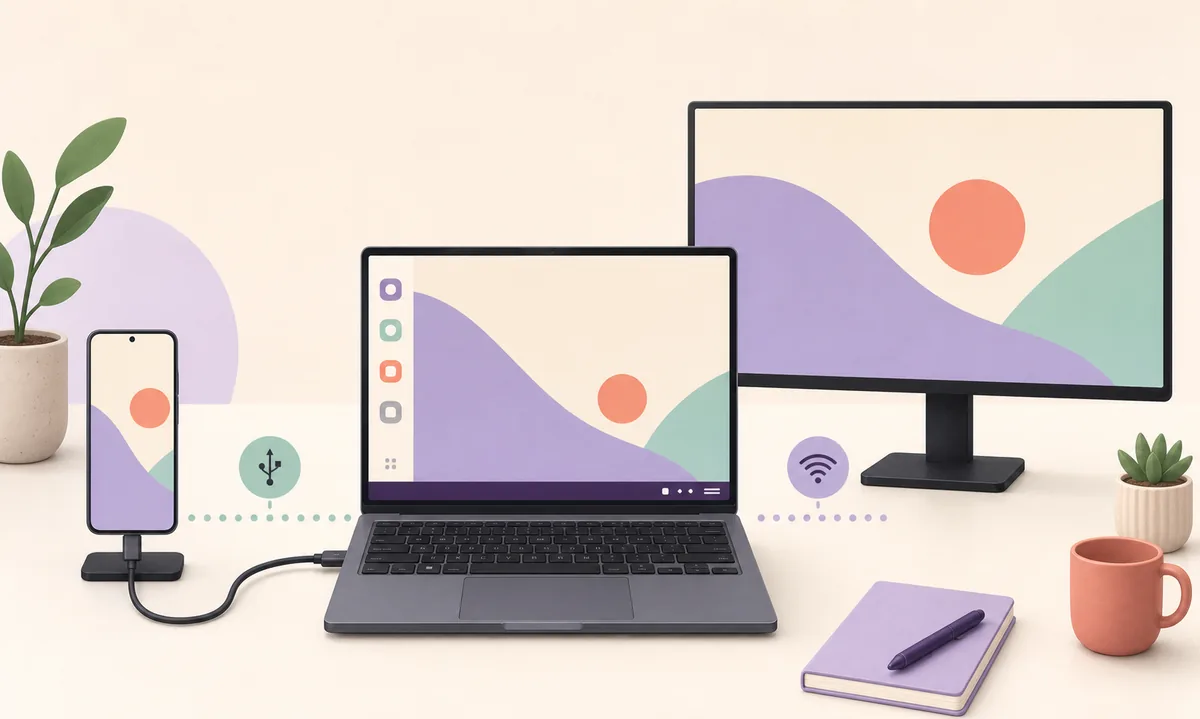
If you need DeX inside a Windows window, install the official DeX for PC app only when the phone supports that legacy mode. If you want the laptop screen to act as a monitor, its HDMI port normally will not work because it is output-only. For current Galaxy software, a compatible wireless receiver or a direct USB-C/HDMI monitor connection is usually the safer route.
Samsung DeX laptop setup at a glance
| Windows window | Legacy DeX for PC app plus a compatible pre-One UI 7 Galaxy device |
|---|---|
| USB cable | Use a data-capable cable; charge-only cables cannot establish the PC session |
| Laptop HDMI | Usually output-only, so it cannot receive HDMI from a Galaxy phone |
| Wireless laptop | Requires a laptop or adapter that exposes a compatible wireless-display receiver |
| Current software limit | Samsung says DeX for PC is not supported on devices running One UI 7 or later |
Choose the right way to use DeX on a laptop
The phrase use Samsung DeX on a laptop describes several different goals. Decide whether you want a DeX window inside Windows, a laptop panel to receive the phone's display, or simply a larger desktop workspace next to the laptop. Those goals require different hardware and software.
Do not start by downloading a random APK or buying an HDMI cable. First check the exact Galaxy model, One UI version, laptop ports, and whether the laptop can receive a wireless display. Samsung's current support limits matter more than the presence of an old installer file.
Windows window
Use DeX for PC with a compatible older phone when you specifically need the Android desktop inside Windows.
Laptop as display
Do not assume HDMI input. Most laptop HDMI ports send video out; use a verified wireless receiver or capture workflow only when its limitations are acceptable.
External monitor
For current devices and stable work, connect the Galaxy phone directly to a video-capable monitor or TV instead of routing video through the laptop.
How to use Samsung DeX on a Windows laptop
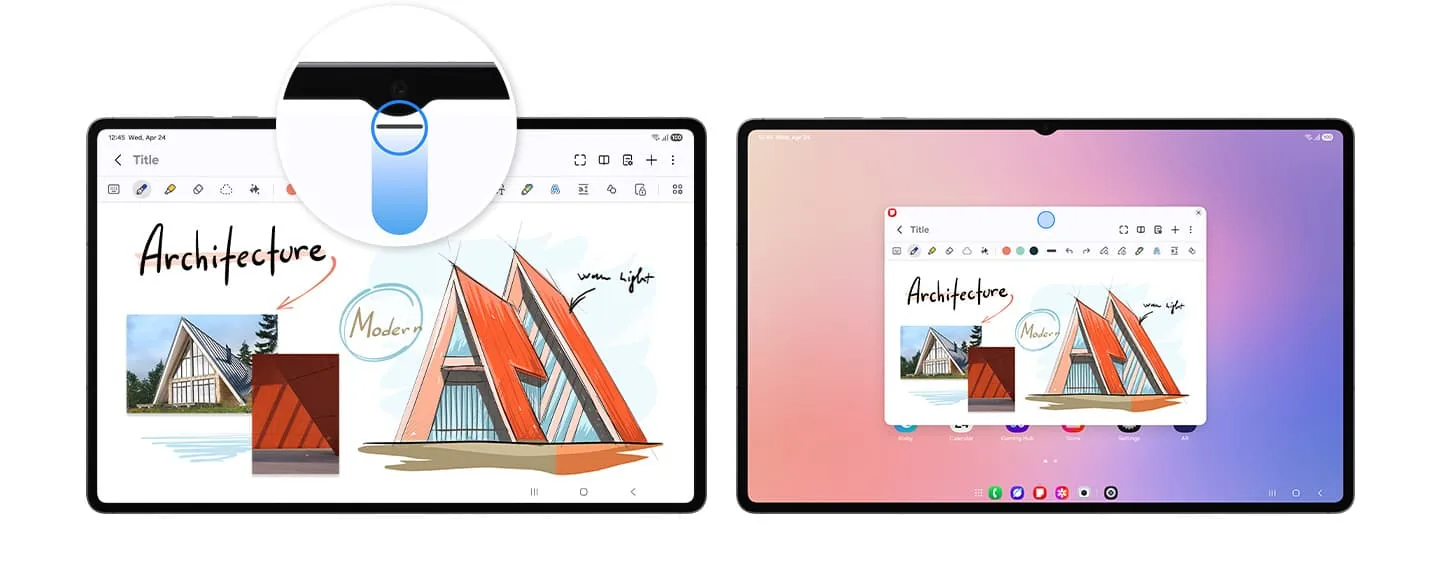
This is the legacy DeX for PC path. Before installing anything, open the phone's software information and check the One UI release. Samsung says DeX for PC is not supported on devices running One UI 7 or later; reinstalling the Windows app cannot restore a mode that the phone no longer supports.
On a compatible older phone, get the Windows installer through Samsung's official DeX download route, install it, open the app, and connect the unlocked phone with a USB data cable. Approve the connection prompt on the phone. If Windows only charges the phone, try a known-good data cable and a direct USB port before changing drivers.
- 1
Check the One UI version
Confirm that the phone is still eligible for DeX for PC before installing the legacy Windows application.
- 2
Install from Samsung's route
Use the official download link and avoid modified installers, APK bundles, or mirror sites.
- 3
Connect with a data cable
Unlock the phone, connect directly to the laptop, and approve the DeX prompt.
- 4
Test the session
Open a few apps, move a window, and verify keyboard, mouse, audio, and file access before relying on it.
A USB connection can transfer data without making the laptop a video input. The DeX for PC application is the component that renders the desktop window on supported older software.
Can a laptop HDMI port display Samsung DeX?
Usually no. On most laptops, HDMI is an output from the laptop's graphics hardware to a television or monitor. It is not an HDMI input that can receive video from a phone, so connecting a Galaxy phone to that port normally produces no DeX image.
Check the laptop manufacturer's manual for the exact port direction before buying an adapter. A USB-C port also does not automatically mean video input: it may support charging, data, or output only. When the laptop has no verified input, use the Windows app, a supported wireless receiver, or a separate monitor.
- HDMI output does not become input with a passive cable or USB-C adapter.
- A capture device can show an HDMI signal in a laptop app, but it adds latency and does not create a native DeX monitor workflow.
- For presentations or long work sessions, a direct monitor connection is usually simpler and more stable.
- Check the phone's video-output support before buying a USB-C hub or HDMI adapter.
How to use Wireless DeX with a laptop or second screen
Wireless DeX is a direct phone-to-display mode. A laptop can participate only if Windows hardware and software expose a compatible wireless-display receiver, or if you use a separate receiver that the laptop can present. The laptop's ordinary Wi-Fi connection alone is not enough.
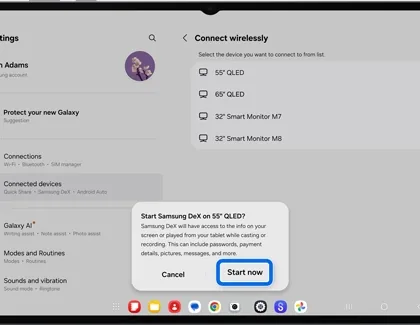
Put the receiver into its wireless-display or Miracast mode, open DeX on the Galaxy device, choose Connect wirelessly, and select the receiver name. Approve the request on the receiving screen. If the laptop does not appear, use the receiver's documented setup or choose a TV, smart monitor, or adapter known to support Miracast.
- 1
Enable the receiver
Open the laptop or adapter's documented wireless-display receiver mode, not ordinary screen casting.
- 2
Open Samsung DeX
Use the DeX tile or Settings > Connected devices > Samsung DeX > Connect wirelessly.
- 3
Select and approve
Choose the receiver name, approve the prompt, and start the desktop session.
Wireless DeX is convenient for browsing and presentations, but radio interference and receiver processing can add latency. Prefer wired video for precise input or high-bitrate work.
Use a direct monitor when the laptop is the wrong middleman
If the goal is a full DeX desktop with low latency, connect the Galaxy phone directly to a compatible USB-C monitor, HDMI display, or powered hub. This avoids the laptop's missing HDMI input and keeps the display path easy to diagnose.
Select the matching monitor input, unlock the phone, approve DeX, and connect a keyboard and mouse by USB or Bluetooth. A powered hub or USB-C monitor can keep the phone charged during longer sessions.
- 1
Verify device and video output
Check the exact phone model and confirm that the chosen USB-C port supports DeX video output.
- 2
Connect the display path
Use a video-capable USB-C cable, hub, or HDMI adapter and select the correct display input.
- 3
Add power and input
Connect USB-C power when the hub supports it, then pair a keyboard and mouse or use the phone as a touchpad.
Fix Samsung DeX laptop connection problems
If the Windows app does not detect the phone, unlock it, replace the cable with a known-good data cable, use a direct USB port, and review the phone's USB mode and connection prompt. If the issue started after a One UI update, check whether the phone crossed the DeX for PC support limit before reinstalling software.
If a wireless receiver is missing, put the receiver in Miracast mode, disable a conflicting hotspot or VPN, restart Wi-Fi, and remove old display sessions. If DeX starts but the image is unstable, reduce distance and radio congestion or switch to a direct wired monitor.
If the laptop screen stays blank after an HDMI connection, stop testing passive cables and confirm the port direction in the laptop manual. A separate monitor, supported receiver, or capture workflow may be required.
- Phone charges only: test a data cable and a direct USB port.
- DeX app will not start: check the One UI version and official installer path.
- Receiver missing: confirm Miracast receiver mode, Wi-Fi, distance, and VPN/hotspot state.
- HDMI blank: treat the laptop port as output-only unless the manufacturer explicitly documents input.
- Session unstable: reduce wireless interference or use a powered direct monitor connection.
Samsung DeX laptop methods compared
Choose the method that matches the laptop's actual role instead of assuming every USB-C or HDMI port can receive video.
| Method | Best for | What you need | Main limitation |
|---|---|---|---|
| Legacy DeX for PC | DeX inside a Windows window | Official app, USB data cable, compatible older phone | Not supported on One UI 7+ devices |
| Wireless receiver | Cable-free second screen or presentation | Miracast-capable receiver and supported Galaxy device | Receiver compatibility and wireless latency |
| Laptop HDMI port | Almost never a phone-display path | Only a laptop with documented HDMI input | Most laptop HDMI ports are output-only |
| Direct external monitor | Stable DeX work and peripherals | Video-capable USB-C/HDMI path and optional power | Needs a separate display |
Samsung DeX on a laptop FAQ
Can I use Samsung DeX on any laptop?
No. The Windows app requires a compatible older Galaxy device, and using the laptop as a display requires a documented wireless receiver or video input. Ordinary HDMI output is not enough.
How do I connect Samsung DeX to a laptop with USB?
For the legacy DeX for PC workflow, install Samsung's official Windows app on a compatible older setup, connect an unlocked phone with a USB data cable, and approve the prompt. A USB cable by itself does not turn the laptop into a monitor.
Can I use my laptop HDMI port as a monitor for Samsung DeX?
Usually not. Laptop HDMI ports are normally outputs. Confirm the exact model's manual before assuming it has HDMI input.
Does Samsung DeX for PC work on One UI 7?
Samsung says DeX for PC is not supported on devices running One UI 7 or later. Check the current device and software compatibility before troubleshooting the Windows app.
Can Samsung DeX connect wirelessly to a laptop?
Only when the laptop or an attached adapter exposes a compatible wireless-display receiver and the Galaxy device supports Wireless DeX. A normal Wi-Fi connection does not automatically make a laptop a receiver.
How do I download Samsung DeX on a laptop?
There is no separate laptop edition to download. Use Samsung's official Windows DeX route only for a compatible legacy DeX for PC setup, then confirm the phone's One UI support before installing it.
What is the easiest alternative if my laptop cannot receive DeX?
Connect the supported Galaxy device directly to a compatible monitor or TV with a video-capable USB-C/HDMI path, or use Wireless DeX with a verified Miracast receiver.
Official setup references
Samsung changes supported modes, menus, and regional download pages over time. Confirm the exact phone model and One UI version with the current official documentation before relying on a legacy PC workflow.