
Wireless DeX
Yes—Wireless DeX still works with compatible displays
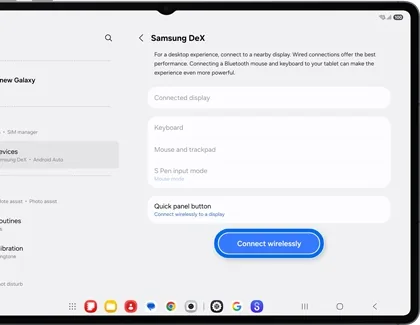
Use the DeX tile or Settings > Connected devices > Samsung DeX > Connect wirelessly, choose a Miracast TV or monitor, approve the prompt, and tap Start. Wireless DeX is a direct phone-to-display mode; it is not the discontinued DeX for PC application.
Wireless DeX requirements at a glance
| Galaxy device | A phone or tablet that shows Samsung DeX and Connect wirelessly |
|---|---|
| Receiver | A Miracast-capable TV, smart monitor, or wireless display adapter |
| Network | Keep Wi-Fi enabled; the receiver must be discoverable |
| Input | Use the phone as a touchpad or pair a Bluetooth keyboard and mouse |
| Best use | Presentations, browsing, media, and light productivity |
Wireless DeX on Windows 11: receiver limits versus DeX for PC
If you want to connect DeX to a laptop wirelessly, first check whether the Windows 11 computer can act as a Miracast wireless-display receiver. That is a display-receiver path, not the old DeX for PC application; the phone and PC must support the same wireless-display mode.
The target screen must support Miracast or a compatible screen-mirroring mode. Samsung says Wireless DeX works with 2018 and later Samsung TVs, Samsung Smart Monitors, and other Miracast receivers, but menus and performance vary by model and region.
Place the Galaxy device near the display, turn off a VPN or mobile hotspot if discovery fails, and disconnect old wireless-display sessions. For long sessions, keep the phone charged because wireless display, apps, and touchpad input can drain the battery quickly.
How to set up Wireless DeX step by step
Swipe down twice to open the full Quick settings panel and tap DeX. If the tile is hidden, open Settings, choose Connected devices, select Samsung DeX, and tap Connect wirelessly.
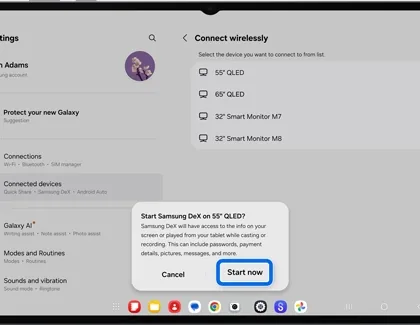
Wait for the receiver list, select the TV or monitor you recognize, then approve the connection on the large screen if it asks for permission. Read the phone prompt and tap Start now or Start.
The desktop should appear after a short handshake. If the screen only mirrors the phone, reopen the DeX menu and choose the desktop mode rather than Smart View screen mirroring.
Use the phone as a touchpad, keyboard, or app launcher
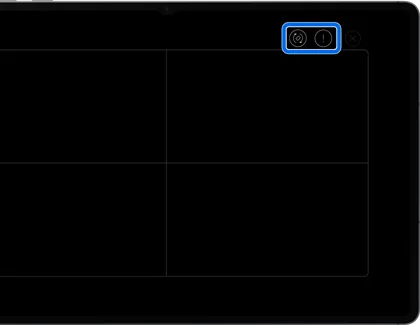
After DeX starts, tap the touchpad notification or the touchpad icon on the phone. One-finger movement controls the pointer, a single tap clicks, two-finger movement scrolls, and a two-finger tap can act like a secondary click.
For writing and longer sessions, pair a Bluetooth keyboard and mouse directly with the Galaxy device. This reduces friction and keeps the phone free for authentication prompts, calls, and app switching.
Wireless DeX is convenient but compression and radio interference add latency. Use a wired USB-C or HDMI connection when smooth cursor response, high-bitrate video, gaming, color accuracy, or a stable conference-room presentation is more important than cable-free setup.
Wireless DeX versus DeX for PC on Windows 11
Wireless DeX sends the desktop directly to a Miracast receiver. DeX for PC was a Windows or macOS application that showed DeX inside a computer window and used a different connection path. The similar names cause many users to follow the wrong instructions.
Samsung states that DeX for PC is not supported on devices running One UI 7 or later and recommends Link to Windows for PC integration. That change does not remove direct monitor DeX or Wireless DeX from every compatible Galaxy device.
If your goal is to use a television or smart monitor as the workspace, follow this Wireless DeX guide. If your goal is to open phone content inside Windows 11, review the Windows and One UI guides before downloading legacy software.
Fix a TV or monitor that does not appear
Put the receiver into screen-mirroring or wireless-display mode, keep both devices close, and refresh the receiver list. Restart Wi-Fi on the phone, remove old pairings, and reboot both devices before changing advanced settings.
If discovery works but the session drops, reduce congestion by moving away from crowded routers, temporarily disabling VPN or hotspot features, and closing heavy background downloads. Test another Miracast receiver to separate a phone problem from a television problem.
A Chromecast-only target may not appear because Wireless DeX expects Miracast-style wireless display support. When reliability matters, use a video-capable USB-C cable, powered hub, or HDMI adapter and follow the wired setup guide.
Wireless DeX FAQ
Can I use Wireless DeX on any smart TV?
No. The television or adapter needs compatible Miracast screen-mirroring support. A smart TV with only casting apps is not automatically a Wireless DeX receiver.
Does Wireless DeX work on Windows 11?
A Windows PC may expose a wireless-display receiver feature, but support depends on the PC hardware and Windows configuration. This is different from the legacy DeX for PC app.
Why does my TV show Smart View instead of DeX?
Screen mirroring and DeX are separate modes. Open the Samsung DeX menu and choose Connect wirelessly, then start the desktop session.
Is Wireless DeX good for gaming?
It can work for casual use, but wireless latency and compression make a wired display connection better for fast games and precise input.
How do I connect Wireless DeX to a laptop or Windows 11 PC?
A laptop must expose a compatible wireless-display receiver for Wireless DeX to find it. If it only runs the old DeX for PC app, use the separate Windows compatibility guidance; Wireless DeX itself does not require a download.
Official sources
Samsung Wireless DeX instructions and One UI support status checked July 19, 2026.