
Start here
Check One UI and the connection mode first
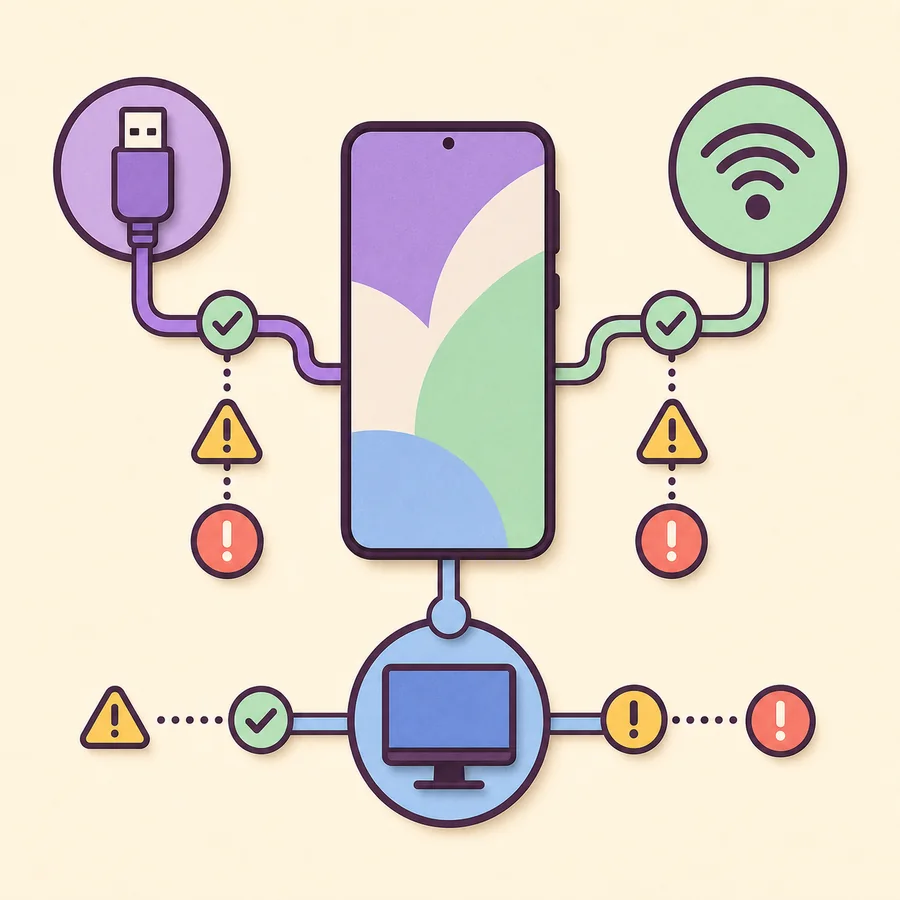
This Samsung DeX not working guide starts with the connection mode. If DeX for PC stopped after a One UI 7 update, Samsung no longer supports that mode and reinstalling Windows software will not fix it. For direct monitor DeX, verify model support and video-capable hardware. For Wireless DeX, verify the receiver, discovery mode, distance, and interference.
Fast diagnostic signals
| PC app fails after One UI 7 | Expected support change; use Link to Windows or direct display DeX |
|---|---|
| Phone only charges | Likely charge-only cable, USB mode, port, permission, or driver issue |
| Monitor says no signal | Check model video output, adapter, power, cable, and selected input |
| TV not listed | Check Miracast support, screen-mirroring mode, pairing history, and distance |
| Black or unstable screen | Reduce hubs, test power delivery, resolution path, and another cable |
| DeX menu missing | Verify the exact Galaxy model and Settings availability |
Samsung DeX not working: diagnosis order
If Samsung DeX is not connecting, change one variable at a time: confirm the exact model and One UI version, then test the cable or wireless receiver, the display input, and the permission prompt. This order prevents a driver reinstall from hiding a support or hardware boundary.
Then simplify the path. Remove docks, extension cables, KVM switches, capture devices, and extra displays. Test the phone directly with one known-good cable or adapter. Restore one accessory at a time after a basic connection succeeds.
Change one variable per test and note the result. Replacing the cable, port, driver, display input, and phone setting simultaneously can produce a temporary success without revealing which component failed.
- 1
Name the mode
Choose DeX for PC, wired monitor DeX, Wireless DeX, or tablet DeX.
- 2
Confirm support
Check the exact model and One UI version before changing hardware.
- 3
Simplify the path
Use one cable, one display, and a direct port where possible.
- 4
Read the symptom
Charging only, no signal, missing receiver, and black screen point to different causes.
- 5
Retest after one change
Keep a working baseline before reconnecting hubs and peripherals.
Fix DeX for PC when Windows does not detect the phone
Confirm that the phone remains on One UI 6.1 or earlier and supports the legacy PC mode. Open the Windows DeX application before connecting the phone, unlock the phone, and watch for the permission prompt. If the device updated to One UI 7 or later, stop this branch and use Link to Windows or direct monitor DeX.
Use a short data-capable USB cable and connect directly to the computer. A cable can charge correctly while its data conductors are missing or damaged. Test another physical port and avoid a hub until detection works. On the phone, inspect the USB notification and choose a data mode when available.
Open Windows Device Manager only after those checks. An unknown or failed Samsung mobile device can justify reinstalling Samsung's official USB driver. Do not stack drivers from several mirror sites, and do not expect a driver to bypass the One UI support policy.
- Unlock the phone before connecting it.
- Accept the DeX or USB permission prompt.
- Use a known data cable and another direct PC port.
- Close conflicting phone-management or screen-control software.
- Check corporate USB restrictions and security software when relevant.
Fix a monitor that shows no Samsung DeX signal
Verify that the exact phone model supports wired DeX and USB-C video output. A USB-C connector is a shape, not a guarantee of DisplayPort video. If the phone lacks the necessary capability, a different hub cannot create it.
Select the correct input on the monitor, test another HDMI or USB-C cable, and connect power to a hub that supports power delivery. Some multiport hubs become unstable when powering storage, video, and the phone from an undersized charger. Remove peripherals and test video alone.
If screen mirroring appears but DeX does not, open the DeX setting on the phone and review its connected-display behavior. If the image appears and then goes black, lower complexity: use one monitor, disconnect capture or KVM hardware, test a different resolution path, and keep the phone powered.
A laptop HDMI port is usually an output, not an input. Connecting the phone to that port will not turn the laptop panel into a DeX monitor.
Fix Wireless DeX when the TV is missing or disconnects
Confirm that the receiver supports the wireless-display method required by the phone. A television can support casting from a video app yet lack the Miracast-style receiver needed for Wireless DeX. Put the display into screen mirroring or wireless display mode before scanning from the phone.
Move the phone closer, restart both devices, and remove old receiver entries. Temporarily disable a phone hotspot, VPN, or unusual network configuration that can interfere with discovery. Busy radio conditions, inexpensive adapters, and long distances can cause lag or intermittent black screens even after pairing succeeds.
For important work, presentation timing, or precise mouse input, switch to a wired connection. Wireless convenience cannot compensate for a receiver that lacks proper support or a heavily congested environment.
Fix app, keyboard, audio, and window problems inside DeX
When the desktop opens but one application behaves poorly, the connection itself may be healthy. Update the app from its official store, close and reopen it, and test whether the developer supports resizable windows, keyboard shortcuts, and large-screen layouts. Some mobile apps remain portrait-oriented or restrict multiple instances.
Check the selected audio output when sound stays on the phone or disappears. Reconnect Bluetooth input devices and inspect keyboard layout settings if keys do not match. For storage, ensure the application has permission to access the intended file and safely eject removable drives before disconnecting the hub.
Restart DeX and the phone after system updates. If a problem started immediately after an update, record the app version, One UI version, display path, and exact symptom before contacting Samsung or the app developer.
Samsung DeX symptom-to-fix matrix
Use the symptom to choose the first high-value test instead of reinstalling everything.
| Symptom | Likely area | First test | Do not assume |
|---|---|---|---|
| PC app stopped after update | One UI support | Read the One UI version | A driver can restore One UI 7+ support |
| Phone charges but is not detected | USB data path | Replace cable and direct port | Charging proves data works |
| Monitor says no signal | Video support and accessory | Verify model output and display input | Every USB-C port carries video |
| TV does not appear | Wireless receiver | Enable Miracast/screen-mirroring mode | All smart TVs support Wireless DeX |
| DeX opens but one app fails | Application behavior | Update and test another app | The display connection is broken |
Samsung DeX not working guide FAQ
Why did Samsung DeX stop working after a phone update?
If the phone updated to One UI 7 or later, Samsung no longer supports DeX for PC. Direct monitor and Wireless DeX should be checked separately by model and mode.
Why does my phone charge but DeX does not connect?
The cable may carry power but not data or video. Use a known data/video cable, test another direct port, unlock the phone, and approve connection prompts.
Why does my monitor show no signal from Samsung DeX?
Verify wired DeX and video output for the exact phone, select the correct monitor input, power the hub, and test another video-capable cable or adapter.
Why can Wireless DeX not find my TV?
The TV may lack compatible wireless-display support or may not be in screen-mirroring mode. Restart both devices, reduce distance, and remove conflicting network settings.
Will reinstalling Samsung USB drivers fix DeX?
Drivers can help when Windows fails to recognize a compatible older phone. They cannot restore DeX for PC on One UI 7 or add DeX to an unsupported model.
Why is Samsung DeX not connecting or disconnecting?
Check the mode first, then test a direct cable or compatible receiver, the selected display input, hub power, and the phone's approval prompt. If the issue began after an update, verify One UI support before reinstalling drivers.
Official troubleshooting references
Start with Samsung's current support boundary, then isolate the hardware or wireless path that applies to the failed mode.