
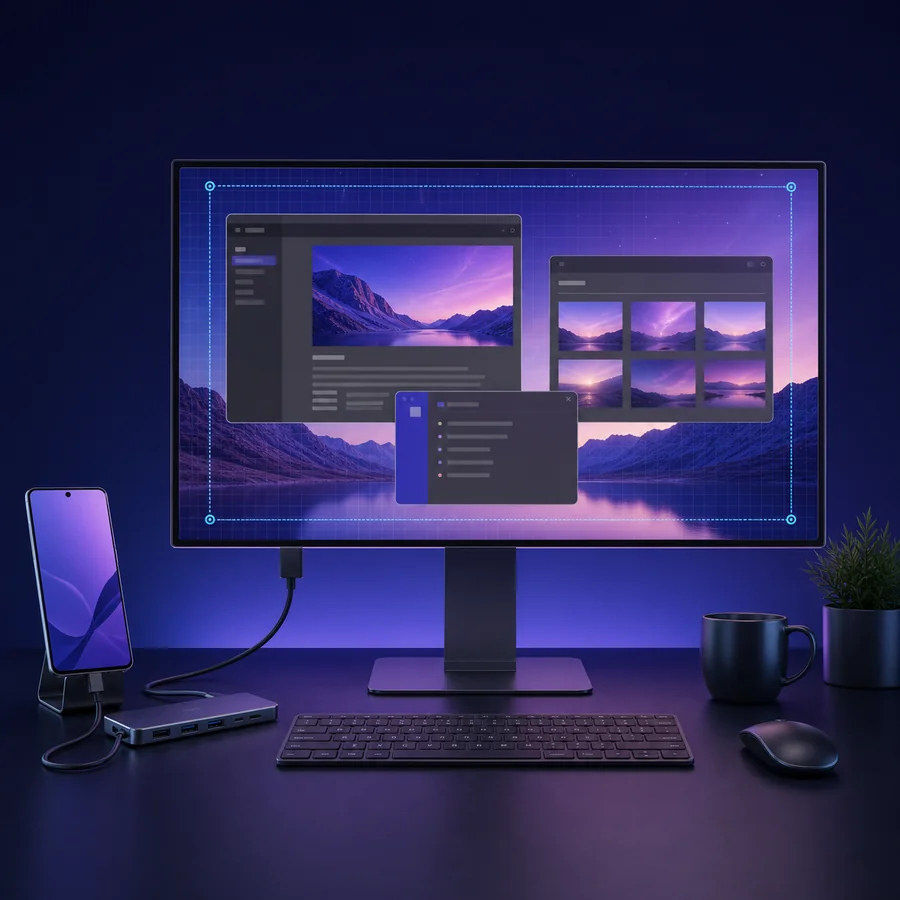
Quick answer
There is no single Samsung DeX resolution for every setup
FHD is the safest baseline for many displays, while WQHD and wider or higher modes depend on the device and connection. One UI 8 can expose a broader range up to a device's supported maximum on eligible hardware, but the menu shown on your screen is the practical source of truth; Samsung does not promise universal 4K output for every Galaxy phone, hub, cable, and monitor combination.
Samsung DeX display resolution basics
| Common baseline | FHD 1920 × 1080 |
|---|---|
| Higher documented mode | WQHD 2560 × 1440 on compatible setups |
| Older fallback | HD+ 1600 × 900 |
| One UI 8 change | Broader choices may appear up to the device's supported maximum |
| Main bottlenecks | Phone, hub or dock, power, HDMI cable, and monitor negotiation |
How to change Samsung DeX resolution
Start DeX on the external display, open Settings, select Samsung DeX, and open Display resolution. On some One UI versions the path appears under Connected devices or the DeX settings panel. Choose a listed mode, wait for the screen to renegotiate, and keep the new setting only if the picture remains stable.
If the menu offers only one option, restarting DeX may refresh detection, but repeated reconnects will not create a mode that the hardware chain does not advertise. Check the exact Galaxy model in the supported-devices guide before replacing cables or docks.
- 1
Open DeX settings
Use the external DeX desktop, not the phone's normal Display menu.
- 2
Select Display resolution
Compare the listed choices with the monitor's native resolution.
- 3
Apply and verify
Check sharpness, black bars, flicker, and app scaling before keeping the mode.
FHD, WQHD, 4K, and ultrawide: what the labels mean
Samsung's developer documentation established HD+, FHD, and WQHD as standard DeX targets. FHD is widely compatible and often the best diagnostic setting. WQHD can make text and multitasking sharper when the phone and display path support it.
A 4K or ultrawide monitor can still run DeX when DeX chooses a lower compatible signal. The monitor may upscale that signal or add side bars. A high-resolution panel therefore does not prove that DeX is sending the panel's native resolution.
FHD
Best first test when the screen is unstable or no higher mode appears.
WQHD
Useful for sharper desktop work when supported by the device and video path.
4K / ultrawide
Treat as device- and accessory-dependent; confirm the actual option inside DeX.
Why a Samsung DeX monitor resolution is missing
DeX reads display capabilities through the adapter or dock. A cheap hub can report fewer modes than the monitor supports, an older HDMI port can limit bandwidth, and a cable that works for video may still be unreliable at a higher pixel rate. Portable monitors can also expose different modes depending on whether they receive enough power.
Test the shortest direct path possible: phone to a known video-capable USB-C adapter, then a known-good HDMI cable to one monitor. Disconnect capture cards, KVM switches, receivers, and converters until the preferred resolution appears.
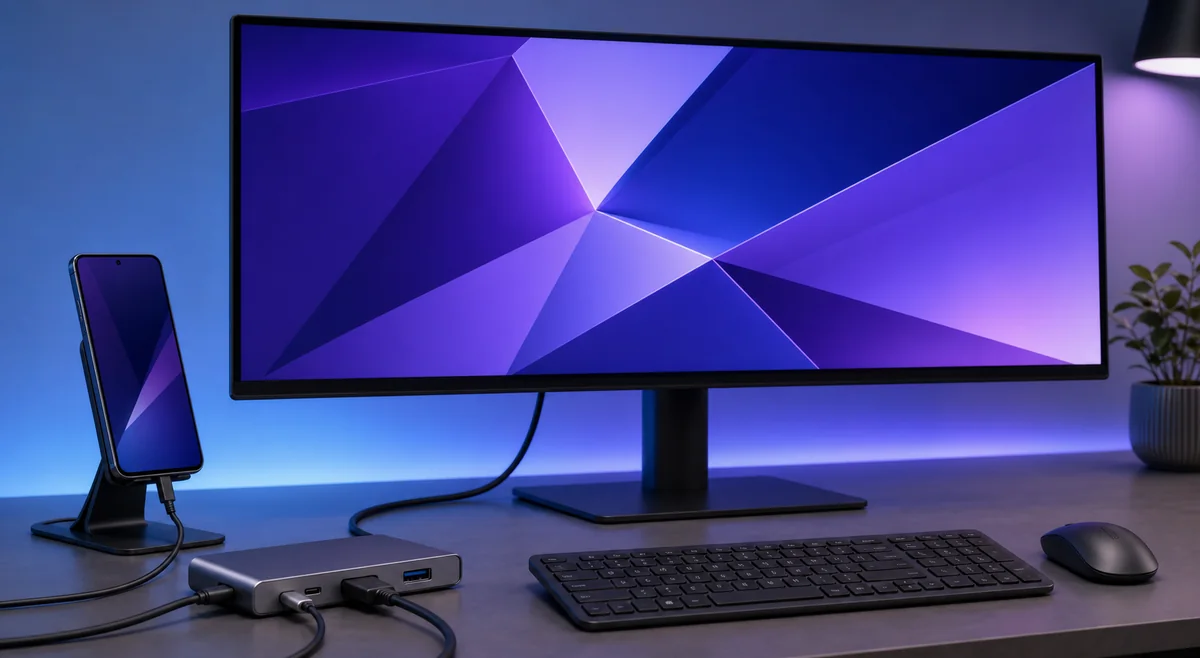
- Confirm the phone supports wired DeX and USB-C video output.
- Connect power to a hub or portable monitor when the hardware supports power delivery.
- Try another HDMI input and disable unusual monitor compatibility modes.
- Remove adapters and switches one at a time to find the limiting component.
Fix blurry text, black bars, scaling, or flicker
Blurry text usually means the signal does not match the panel's native resolution or the monitor is applying overscan or image enhancement. Set the monitor to PC mode, Just Scan, Screen Fit, or an equivalent 1:1 option when available. Avoid zoom modes designed for television broadcasts.
If windows or icons are too small, use DeX screen zoom or font-size controls instead of forcing an unstable resolution. Flicker or brief black screens usually point to cable, hub, power, refresh-rate, or handshake problems rather than an app setting.
A resolution setting cannot fix a phone that lacks wired DeX support. Verify the model first, then troubleshoot the display chain.
Wired resolution versus Wireless DeX
Wireless DeX uses Miracast and can prioritize stability and latency over maximum sharpness. The TV or wireless receiver also participates in the negotiation, so the choices and picture quality can differ from the same phone connected by HDMI.
Use wired DeX for the most predictable desktop resolution, long work sessions, and peripherals. Use Wireless DeX when convenience matters more than the sharpest possible text, then follow the Wireless DeX guide for discovery and connection issues.
Samsung DeX resolution diagnosis table
Use the symptom to choose the next test instead of buying a new monitor immediately.
| Symptom | Likely cause | Best next step |
|---|---|---|
| Only FHD is listed | Device or adapter limit | Add power, try a direct certified adapter, and recheck the menu |
| 4K monitor looks soft | DeX is sending a lower mode | Use PC or 1:1 display mode and select the highest stable DeX option |
| Black bars on ultrawide | Aspect ratio mismatch | Try a listed wide mode or accept pillarboxing |
| Higher mode flickers | Bandwidth, cable, or power instability | Shorten the path and replace one component at a time |
| No signal | Unsupported device or video path | Verify wired DeX support and follow the troubleshooting guide |
Samsung DeX resolution FAQ
Does Samsung DeX support 4K resolution?
Some newer device and One UI combinations may expose higher resolutions, but Samsung does not provide one universal 4K guarantee for every setup. Check the actual DeX Display resolution menu and verify the complete phone, adapter, cable, and monitor chain.
Why is WQHD missing in Samsung DeX?
The phone, adapter or dock, available power, HDMI link, or monitor capability data may limit the advertised modes. Test a powered direct connection and a known-good cable before assuming the monitor is incompatible.
Does Samsung DeX work with a 1280p monitor?
1280p is not a standard monitor label, but DeX can work when the display accepts a compatible input mode. Check the monitor's actual native pixel dimensions and the resolutions listed by DeX.
Can Samsung DeX use an ultrawide monitor?
It can display on many ultrawide monitors, but native aspect-ratio support depends on the device and connection. If a wide mode is not offered, the monitor may show side bars or scale a 16:9 signal.
Can Samsung DeX use two external monitors?
DeX is generally designed around one external desktop display. A dock with multiple video ports does not guarantee an extended dual-monitor DeX desktop.
Why does DeX look blurry on a 4K TV?
The TV may be scaling a lower-resolution DeX signal or applying overscan and video processing. Enable PC or 1:1 pixel mode, turn off zoom, and select the highest stable resolution listed by DeX.
Official Samsung DeX resolution sources
Checked July 20, 2026. Device-specific menus and current Samsung support pages take priority over generic claims from accessory listings.