
Quick answer
Pair input with the Galaxy device, then start DeX
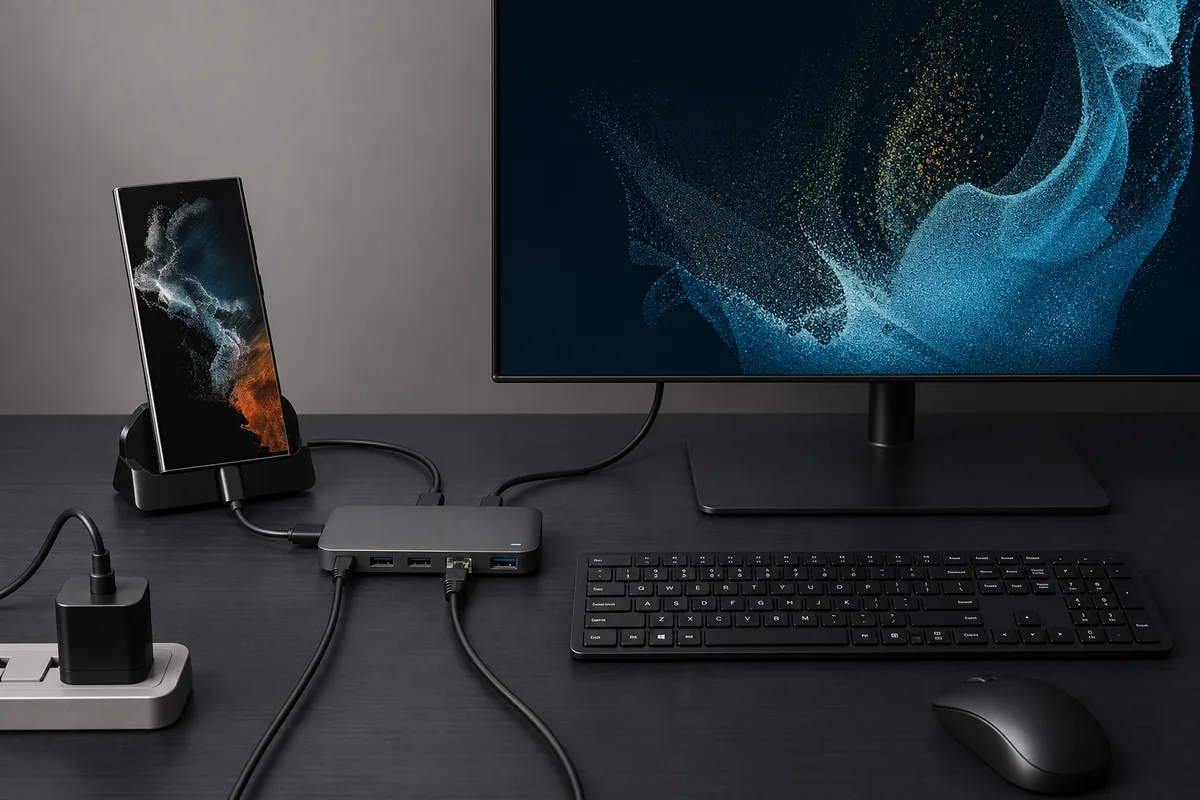
Pair Bluetooth input with the Galaxy device running DeX, or plug wired accessories into a dock or hub with USB data ports. A DeX cable alone has no USB accessory ports. The phone can often serve as a temporary touchpad.
Samsung DeX keyboard mouse setup at a glance
| Bluetooth | Pair accessories with the Galaxy device running DeX. |
|---|---|
| Wired USB | Use a dock or hub with video and USB data ports. |
| DeX cable | Choose Bluetooth; a cable alone has no USB accessory ports. |
| Input settings | Check keyboard layout and Mouse and trackpad options. |
| Fallback | Use the phone touchpad or on-screen keyboard. |
Choose a Samsung DeX keyboard mouse connection
A reliable Samsung DeX keyboard mouse setup starts with the display connection. A dock or hub with USB data ports can take wired accessories; a DeX cable or USB-C-to-HDMI adapter cannot. Bluetooth is the simplest choice when the display adapter has no extra ports.
Bluetooth input pairs with the Galaxy phone or tablet running DeX, not with the monitor. A USB receiver may work through a compatible hub, but test it with your phone first. The phone screen can also provide touchpad control.
- Bluetooth: use with a direct cable, adapter, or wireless display.
- Wired USB: use a dock or hub with USB data ports.
- Phone controls: use the touchpad or on-screen keyboard as a fallback.
Pair a Samsung DeX keyboard mouse over Bluetooth
Pair each accessory to the Galaxy device that runs DeX. Check batteries and use the maker's pairing mode; a keyboard may have a separate pairing key or device slot. Keep one accessory close while pairing it.
Open Bluetooth from Quick Settings or Settings, choose the accessory, and enter any code shown on screen. After pairing the keyboard and mouse, start DeX and test typing, pointer movement, scrolling, and clicks in an app.
- 1
Prepare and open Bluetooth
Charge the accessories, put the keyboard in pairing mode, then open Bluetooth on the Galaxy device.
- 2
Pair both devices
Select the keyboard and mouse in turn. Type any code shown by the phone and confirm it.
- 3
Test in DeX
Connect the display, then check typing, pointer movement, scrolling, and clicks in an app.
If a multi-device keyboard reconnects elsewhere, switch to its phone profile and reconnect it in Galaxy Bluetooth settings.
Connect wired input through a dock or USB hub
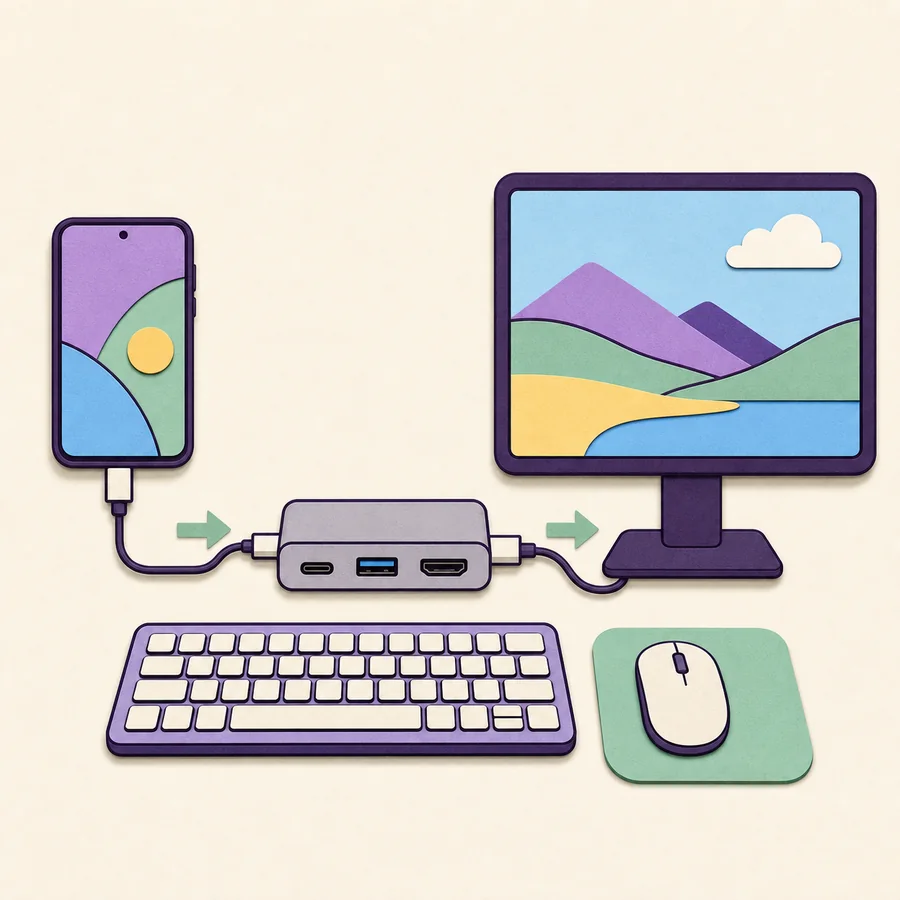
For wired input, choose a dock or hub with the display output and USB data ports you need. A matching USB-C plug alone does not guarantee video, data, or enough power. Use Bluetooth with a DeX cable or display-only HDMI adapter.
Samsung's setup guide shows wired accessories on a DeX Station or DeX Pad. A compatible multiport hub can also connect standard USB devices; add its recommended power adapter when required.
- 1
Check ports and power
Confirm the hub supports your phone, display, USB data, and required power.
- 2
Connect the display and input
Attach the screen and wired accessories to the hub, then select the correct display input.
- 3
Connect the Galaxy device
Unlock the phone or tablet, accept any DeX prompt, and test each accessory.
Adjust the keyboard language and mouse settings
For incorrect symbols, check the physical keyboard layout and active input language. Samsung's support path is Settings, Connected devices, Samsung DeX, Keyboard, then More settings. Labels can vary, so search Settings for keyboard if needed.
To change pointer behavior, open Mouse and trackpad in DeX settings. Adjust pointer speed, scrolling, primary button, size, or color when those options are available. Change one setting at a time and test it in the affected app.
The physical layout may be separate from the on-screen keyboard language. Check both when punctuation or shortcut keys do not match the printed labels.
Use DeX keyboard shortcuts and desktop controls
DeX shortcuts vary by device, One UI version, keyboard layout, and app. Some keyboards use Command or Search where another has a Windows key. Check shortcut help when a combination fails, and test unfamiliar keys before a presentation or edit.
- Check whether your keyboard labels the system key Windows, Command, or Search.
- Use the current DeX shortcut help; app focus can change what a combination does.
- Use the pointer when an app does not accept a keyboard shortcut.
Not every Windows shortcut works in DeX; support depends on software and the focused app.
Use the phone as a Samsung DeX touchpad
When no mouse is available, the Galaxy phone can often control the pointer on an external DeX screen. Look for a touchpad control in the navigation area or DeX notification, then move a finger on the phone to move the pointer. Tapping may click in supported versions.
This is a temporary fallback, not a full mouse replacement. Keep the phone awake and switch to Bluetooth or USB input for longer sessions.
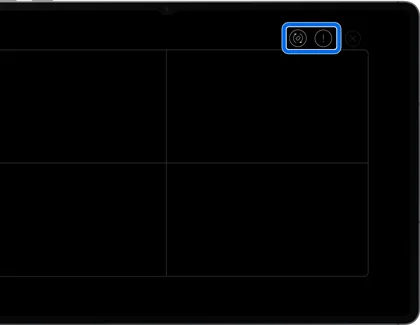
If the control is missing, check DeX notifications and navigation settings, then reconnect the display.
Fix keyboard or mouse problems in Samsung DeX
Identify whether the accessory is missing from Bluetooth, paired but unresponsive, or working outside DeX only. Check power and pairing before changing display settings; remove only the affected device when reconnecting it.
Samsung's troubleshooting guide also recommends testing the accessory, DeX settings, and another device. This order helps separate a phone, hub, or app issue from an accessory fault.
- 1
Check power and pairing
Charge the battery, restart the accessory, and confirm pairing mode.
- 2
Reconnect one device
Remove only the affected accessory in Bluetooth settings, pair it again, and enter any code.
- 3
Test another app or port
Try a basic text field or another USB data port to isolate the cause.
- 4
Review DeX settings
Check keyboard layout and Mouse and trackpad options; labels vary by software version.
If the accessory also fails on another device, check its battery or contact its maker.
Compatibility notes before buying an accessory
An accessory can connect while an app ignores a key, shortcut, scroll wheel, or secondary button. Android apps differ in desktop behavior, so test the apps you need before buying specialized input devices. DeX does not make every app behave like a Windows program.
Before buying, check device support, the hub's USB data ports, and the accessory's layout and pairing method. The related guides below cover supported Galaxy models and display adapters.
- Check Galaxy model support and hub video/data ports.
- Confirm keyboard layout and device switching before a long session.
- Keep the phone touchpad or on-screen keyboard as a fallback.
Samsung DeX keyboard mouse connection options
Choose input based on the display path and the ports available on the dock or adapter.
| Input method | What connects | Best fit | Important limit |
|---|---|---|---|
| Bluetooth | Keyboard and mouse pair directly with the Galaxy device | Direct DeX cable, HDMI adapter, or wireless display | Pair each accessory and choose the phone profile on multi-device keyboards |
| Wired USB | Keyboard and mouse plug into a dock, station, or hub | Desk setup with USB data ports and optional charging | A DeX cable or display-only adapter has no USB accessory ports |
| Phone touchpad | Phone screen controls the pointer | Temporary mouse replacement | Comfort and gesture support vary by device and software |
| On-screen keyboard | Phone displays a keyboard for text entry | Short typing when no physical keyboard is available | Less convenient for extended writing |
Samsung DeX keyboard mouse FAQ
Can I use a wired keyboard with a DeX cable?
No. Use Bluetooth or a dock or hub with USB data ports for wired input.
How do I pair a Bluetooth keyboard?
Put it in pairing mode, select it in Galaxy Bluetooth settings, and enter any code shown on the phone.
Should I pair with the TV or phone for DeX?
Pair with the Galaxy device running DeX. TV Bluetooth settings are a separate connection and may control the TV interface.
Where are DeX mouse settings?
Open Settings, Connected devices, Samsung DeX, then Mouse and trackpad. Labels vary by device and One UI version.
Can my phone replace a DeX mouse?
Often. Use the on-screen touchpad as a temporary pointer; use Bluetooth or USB input for longer sessions.
Why are the keyboard symbols wrong?
Check the physical layout and input language in DeX settings; a mismatch changes punctuation.
Do all Windows shortcuts work in DeX?
No. Shortcuts vary by software, keyboard layout, and focused app. Check the current DeX shortcut help.
Samsung DeX keyboard and mouse sources
Samsung's first-party guides support these setup and troubleshooting steps; menu labels can vary by device and software.