
Quick answer
Choose a powered USB-C dock with video output, not just extra USB ports
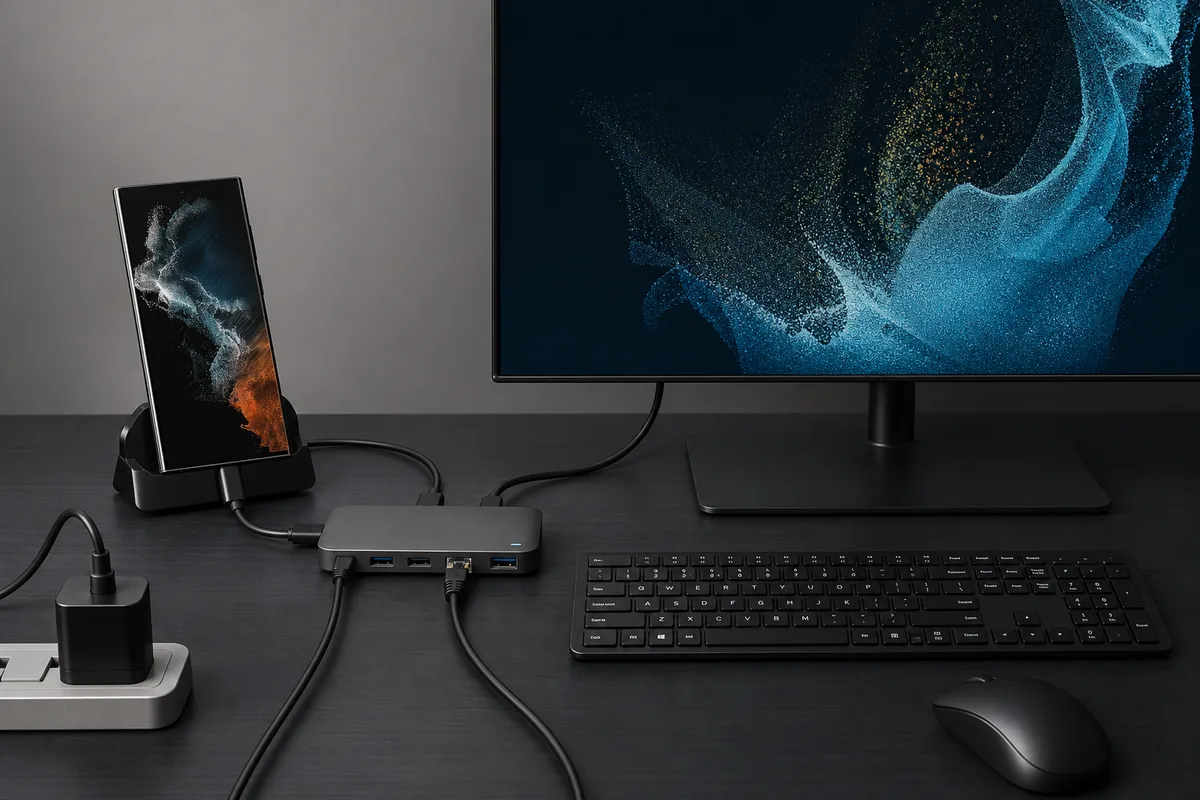
For most wired DeX setups, look for HDMI or DisplayPort output, USB Power Delivery input, at least two USB ports, and clearly documented video support. Ethernet and an audio jack are useful but optional. A dock cannot add wired DeX to a Galaxy model that lacks USB-C video output, and a multi-monitor dock does not guarantee an extended dual-monitor DeX desktop.
Samsung DeX dock buying checklist
| Essential video | HDMI or DisplayPort through USB-C DisplayPort Alt Mode |
|---|---|
| Recommended power | USB-C PD input with a suitable charger and cable |
| Useful ports | 2+ USB ports, Ethernet, optional audio and card reader |
| Safe baseline | One external display at FHD before testing higher modes |
| Compatibility limit | The phone or tablet must support wired Samsung DeX |
DeX Station, DeX Pad, or a modern USB-C hub?
Samsung’s older DeX Station and DeX Pad were designed specifically for supported Galaxy phones. They provide a stable reference for the ports DeX users need, but they are discontinued hardware and used units may have worn connectors, missing chargers, or limited modern display support.
A current USB-C hub is usually easier to replace and can serve laptops and tablets as well. Prioritize explicit video-output specifications, USB Power Delivery pass-through, and a return policy. Marketing photos showing an HDMI socket do not prove every phone can send video through it.
DeX Station
Purpose-built legacy dock with cooling and desktop ports; practical mainly when found in good condition.
DeX Pad
Legacy flat dock that can expose the phone as a touchpad while connected to a display.
USB-C hub
Best general choice when video, PD input and port specifications are clearly documented.
Ports and specifications that matter
The HDMI or DisplayPort connection is the first requirement. The dock must accept USB-C DisplayPort Alt Mode from the Galaxy device and convert or pass it to the display. Some inexpensive hubs are data-only, while some laptop docks rely on DisplayLink software that Android DeX does not use in the same way.
Power Delivery keeps the phone charged and can improve stability when keyboards, storage, Ethernet and a display are active together. Check the dock’s maximum input and the power reserved for its own electronics; a “100 W” label does not mean the phone receives 100 W.
- 1
Confirm wired DeX support
Check the exact Galaxy model before buying any dock.
- 2
Verify native video output
Look for HDMI or DisplayPort over USB-C Alt Mode, not only DisplayLink.
- 3
Add adequate PD power
Use a reputable charger and e-marked cable suitable for the dock.
How to connect a Samsung DeX dock
Connect the charger to the dock first, then attach the monitor with a known-good HDMI or DisplayPort cable. Add the keyboard and mouse, and finally connect the dock’s upstream USB-C cable to the Galaxy device. Select the correct monitor input and unlock the phone if DeX does not start automatically.
Begin at FHD with only the display connected. Add Ethernet, storage and other USB devices one at a time. This sequence makes power, bandwidth and cable faults easier to identify than connecting every peripheral before the first test.
Use external power during troubleshooting. An unpowered hub may show video briefly but fail after USB devices are attached.
Resolution, refresh rate, and multi-monitor limits
A dock advertising 4K 60 Hz describes the dock’s possible link capability, not a universal Samsung DeX promise. The Galaxy model, One UI version, adapter chipset, cable and display negotiation all affect the resolutions shown inside DeX. Use the dedicated resolution guide when WQHD, ultrawide or higher modes are missing.
Most DeX workflows use one external desktop display. Two HDMI sockets on a dock do not guarantee two independent DeX monitors; mirrored output or one active port is common. Buy a multi-display dock only when its behavior has been verified with the exact Galaxy model and DeX mode you intend to use.
Common dock problems and the fastest checks
No signal usually points to an unsupported Galaxy model, a data-only USB-C path, the wrong display input, or a bad HDMI cable. Disconnect nonessential USB devices, apply power, restart DeX, and test another short cable before replacing the dock.
Repeated disconnects, slow charging, storage errors or Ethernet drops usually indicate a weak charger, a poor upstream cable, overheating, or too many high-power peripherals. Test the dock with only power and video, then restore one accessory at a time.
Samsung DeX dock comparison
Match the accessory to the job instead of buying the dock with the most ports.
| Option | Best for | Main caution |
|---|---|---|
| DeX Station or DeX Pad | Collectors and simple legacy phone setups | Discontinued hardware, condition and charger vary |
| Compact HDMI hub | Travel and basic monitor use | May have few USB ports or limited cooling |
| Powered desktop hub | Keyboard, mouse, Ethernet and storage | Requires a good charger and upstream cable |
| Laptop dock with DisplayLink | Some computer workflows | DisplayLink branding alone does not guarantee DeX video |
| Dual-display dock | Specialized setups | Usually does not create an extended two-monitor DeX desktop |
Samsung DeX dock FAQ
Do I need an official Samsung DeX dock?
No. A compatible powered USB-C hub can work if the Galaxy device supports wired DeX and the hub provides native USB-C video output. Official legacy docks are optional, not required.
Will any USB-C hub work with Samsung DeX?
No. Data-only hubs and docks that depend on unsupported display software may not output DeX video. Confirm HDMI or DisplayPort over USB-C Alt Mode and check the exact Galaxy model.
How much power does a Samsung DeX dock need?
There is no single wattage for every setup. Use a reputable USB-C PD charger that can power the dock, phone and attached peripherals, and follow the dock manufacturer’s input recommendation.
Can a DeX dock run two monitors?
A dock with two video ports does not guarantee an extended dual-monitor DeX desktop. Most setups should be planned around one external display.
Why does DeX work without USB devices but fail when I add them?
The dock may be underpowered, the upstream cable may be weak, or the peripherals may exceed the available USB power or bandwidth. Add external power and reconnect devices one at a time.
Is a Samsung DeX cable enough instead of a dock?
A USB-C to HDMI cable is enough for display output when the device supports wired DeX, but a dock is better when you also need charging, keyboard, mouse, Ethernet or storage.
Official Samsung DeX and dock references
Checked July 22, 2026. Samsung no longer presents the legacy DeX Station or DeX Pad as current universal accessories; current device support and the DeX settings shown on the phone take priority.